# Set up your workspace
Create a Sandbox or Production workspace, mint an API key, and authenticate your first request.
Your workspace is the boundary for everything your team configures in Medblocks: API keys, patients, patient sessions, connection credentials, exports, webhooks, and dashboard monitoring.
### Sign in [#sign-in]
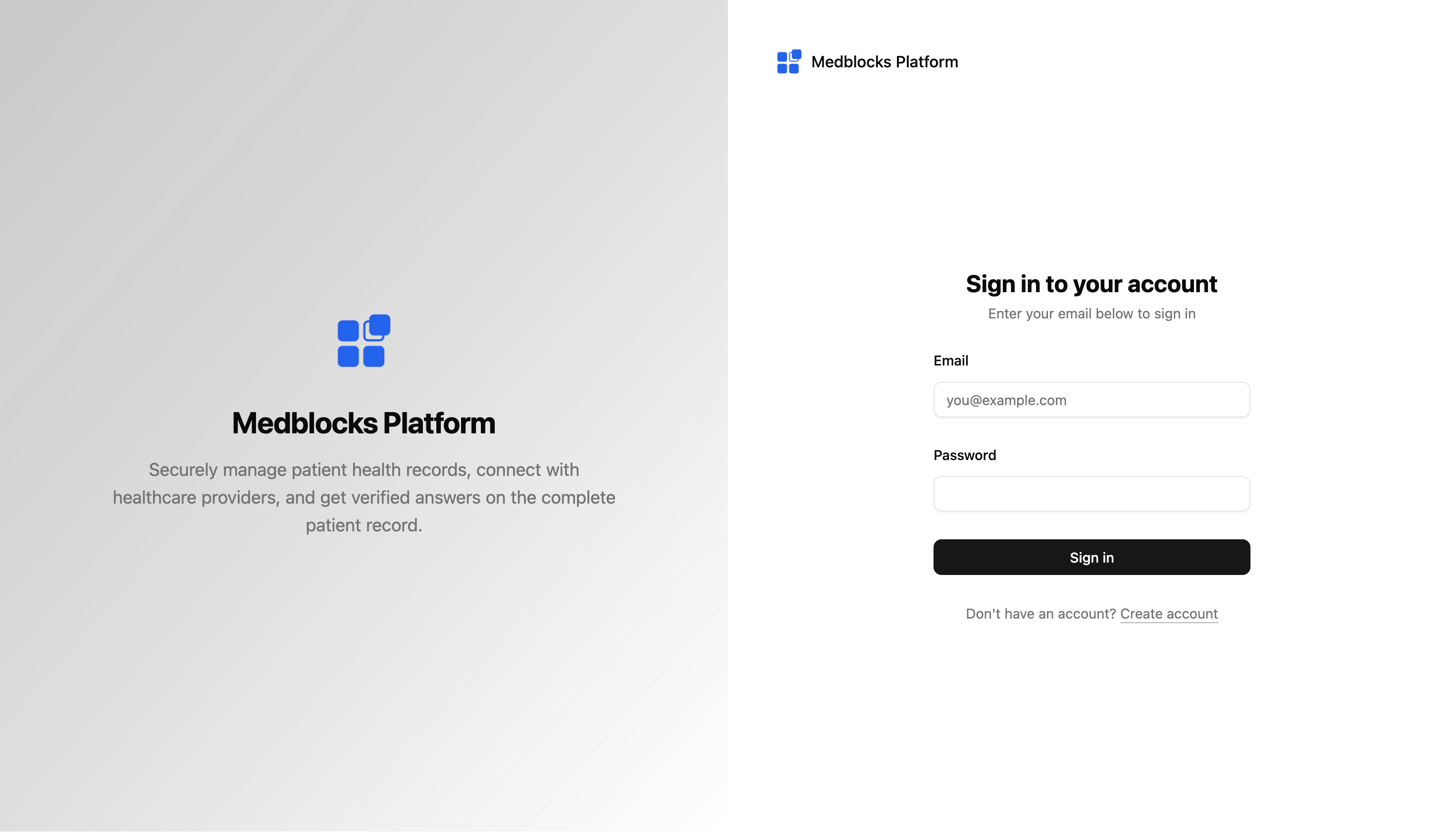
Open [app.medblocks.com](https://app.medblocks.com) and sign in with your work email. If this is your first time, Medblocks asks you to create a workspace before you continue.
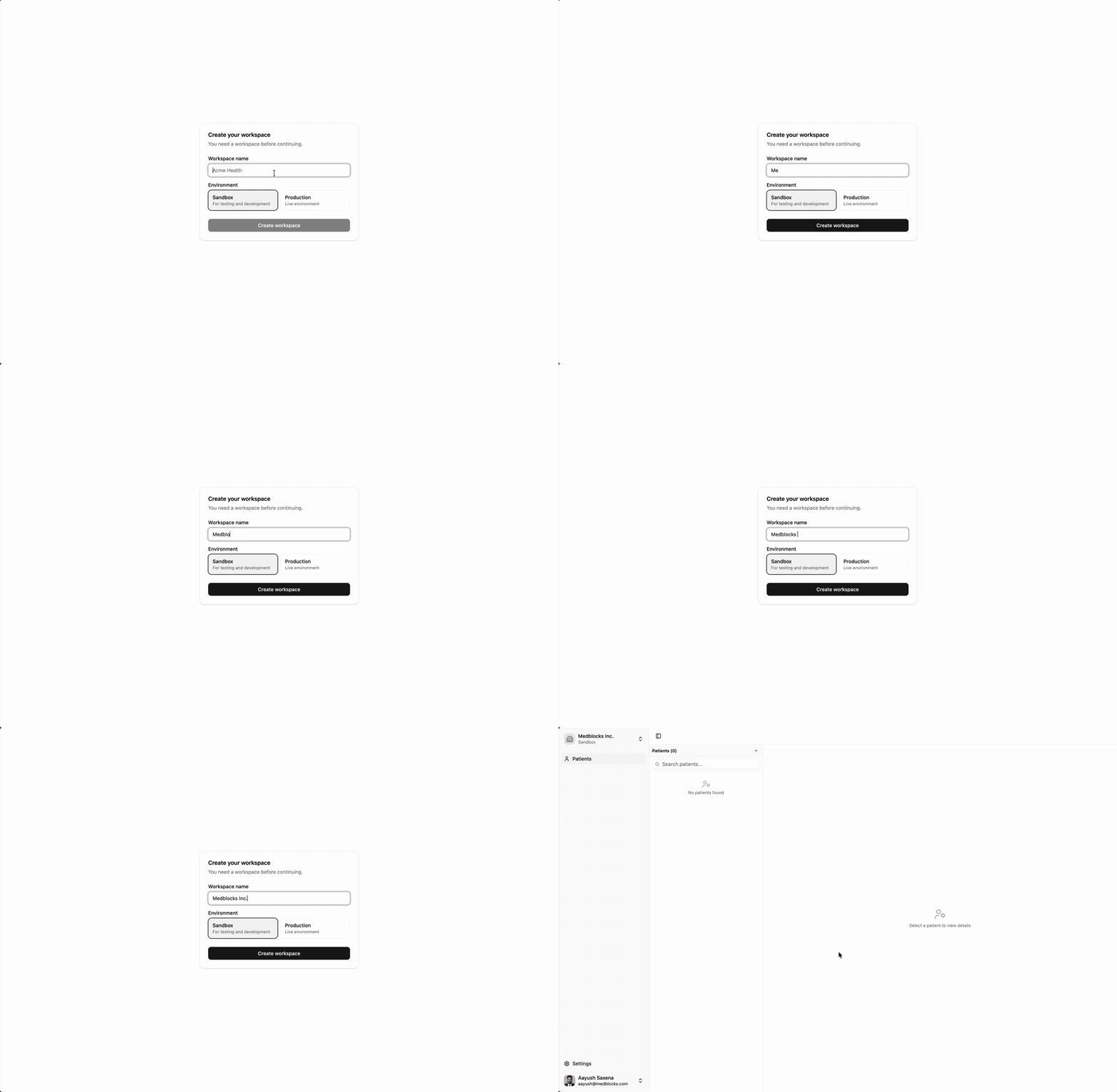
### Create a Sandbox or Production workspace [#create-a-sandbox-or-production-workspace]
Give the workspace a real team or product name, such as `TrialMatched` or `Acme Health`. The workspace name appears in the dashboard, workspace switcher, invitations, and operational views.
Setting up a Sandbox workspace.
A workspace owns:
* API keys.
* Patients and patient sessions.
* Connection and authorization history.
* Export destinations.
* Webhook endpoints.
* Source configuration.
Every workspace is either **Sandbox** or **Production**.
| Environment | Use it for | API key prefix |
| ----------- | ------------------------------------------------------------------- | -------------- |
| Sandbox | Development, demos, synthetic patients, and vendor sandbox sources. | `mb_sk_sbx_` |
| Production | Live credentials, live patient data, and production exports. | `mb_sk_live_` |
The environment scopes which sources the workspace can see. A sandbox key cannot start sessions against production sources, and a production key cannot route patients to sandbox sources.
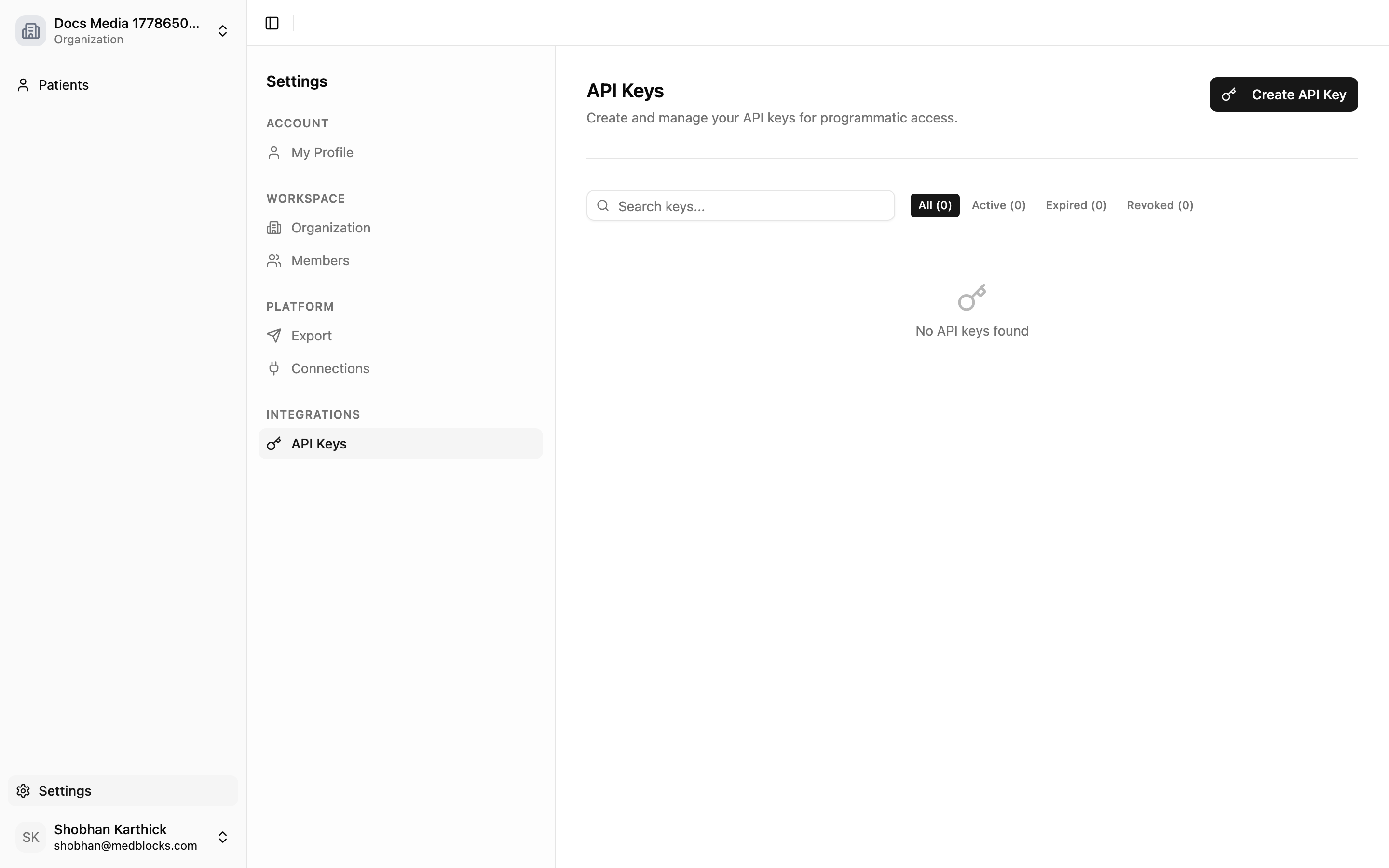
### Open the API Keys page [#open-the-api-keys-page]
From Settings, open API Keys to see active, revoked, and expired keys. Every workspace member can view the list.
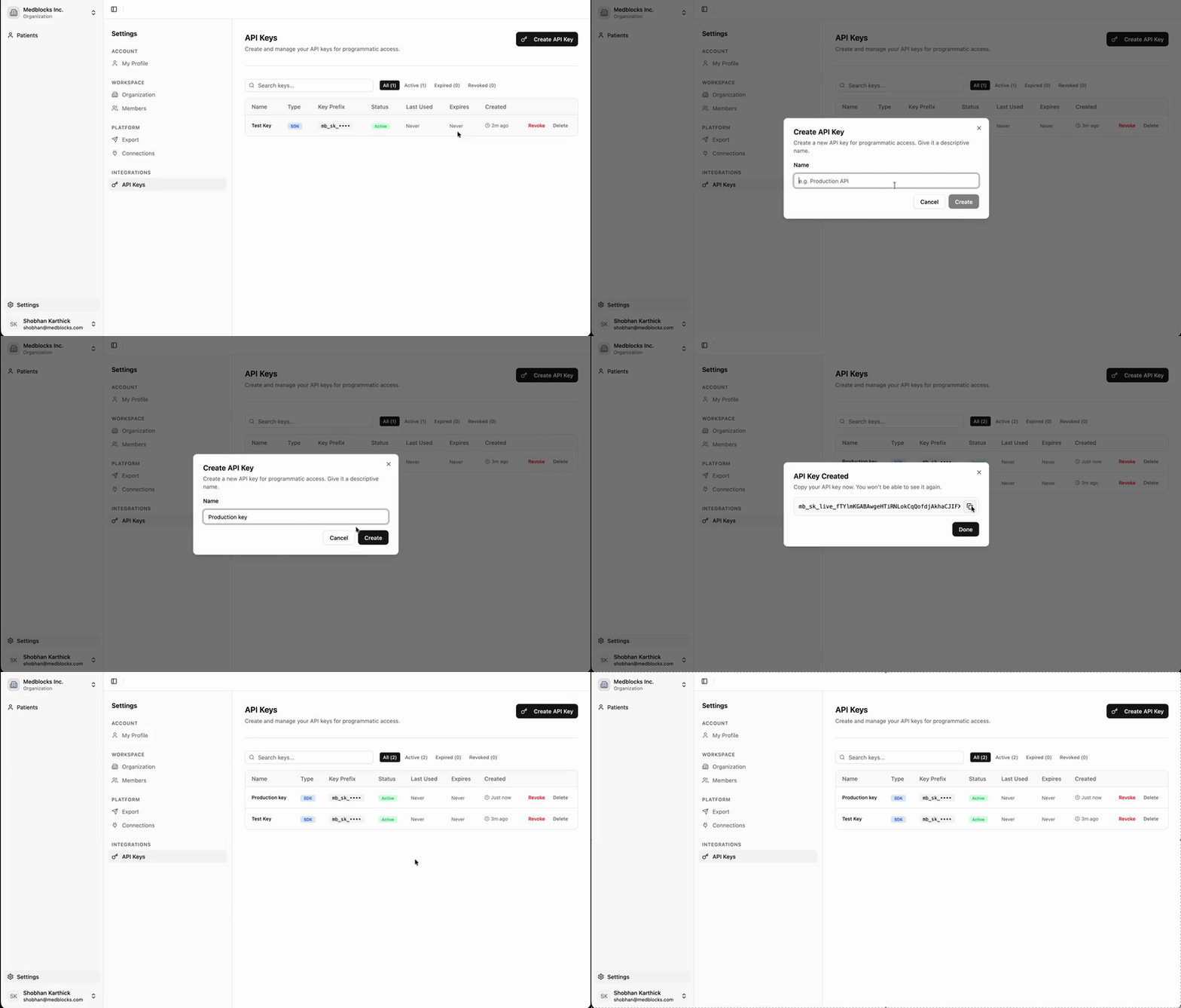
### Create an API key [#create-an-api-key]
Click Create API Key, give it a descriptive name like `Production API` or `Sandbox Backend`, and confirm. The dashboard returns the full key once.
Only workspace owners and admins can create keys. A member sees the list without the Create API Key button, so ask an owner or admin for a key.
### Use the API key in your backend [#use-the-api-key-in-your-backend]
Copy the key immediately and store it in your server-side secret manager. API keys are server-side secrets; do not put them in browser code, mobile apps, or client-side bundles.
```bash title=".env"
MEDBLOCKS_API_KEY="mb_sk_sbx_..."
```
Load that environment variable in your backend or shell before calling Medblocks.
```bash
curl https://app.medblocks.com/patients \
-H "Authorization: Bearer $MEDBLOCKS_API_KEY" \
-H "Content-Type: application/json"
```
### Pick the next setup path [#pick-the-next-setup-path]
After the workspace exists, choose the setup path that matches what you want to do first.
| Goal | Next page |
| -------------------------------- | ------------------------------------------------------------ |
| Configure source credentials | [Configure connections](/docs/configure-connections) |
| Build with synthetic data | [Test with sandboxes](/docs/sandboxes) |
| Use the dashboard first | [Use Medblocks without code](/docs/without-code) |
| Build patient access in your app | [Patient access quickstart](/docs/patient-access/quickstart) |
## Rotate or revoke keys [#rotate-or-revoke-keys]
Manage key lifecycle from Settings, API Keys. Create the replacement key before revoking the old one so nothing breaks.
Workspace owners and admins can create, revoke, and delete keys. Members can view the keys and nothing more.
## See also [#see-also]
* [Configure connections](/docs/configure-connections)
* [Test with sandboxes](/docs/sandboxes)
* [Patient access quickstart](/docs/patient-access/quickstart)
* [Security and compliance](/docs/security-and-compliance)
* [API reference](/docs/reference/api)
## Need help?
Running into an issue or have a question the docs do not answer? Get support from the Medblocks team through https://forms.gle/dtVxkmfL6Yimp6SBA and we will get back to you.