How to use HL7 Studio
HL7 Studio reads, checks and edits HL7 v2 messages. It runs entirely in your browser. Nothing you open is uploaded, and the editor keeps working when the network does not.
Opening a message
There are four ways to get a message in front of you.
- Open reads a
.hl7or.txtfile from your device. - Drag a file anywhere onto the window and drop it.
- Click into the editor and paste. This is the fastest route when the message came from a log or a ticket.
- Create a message starts a new message from a structure the standard defines, such as ADT, ORU or ORM.
A message wrapped in MLLP framing is read as it stands. You do not have to strip the framing first.

The version badge
The badge at the top right names the HL7 edition in force. It decides every field name, every data type and every code the editor will accept, which is why it sits where you can see it without looking.
You do not choose it. The editor reads it from MSH-12, because the message already answers that question. Change the declared version in the message and the badge follows.
Two things can make the badge amber, and it says which in a tooltip.
v2.3 to v2.5.1means the edition the message asks for could not be loaded, so a neighbouring one is being used and the field names are an approximation.partial definitionsmeans the edition in force cannot check everything. v2.1 has no message structures in this build, so segment order and grouping are not checked for it.

Reading a message
Text is the message as it is on the wire, with the delimiters highlighted. Hover any field for its definition. Coded values are decoded where the standard states a table.
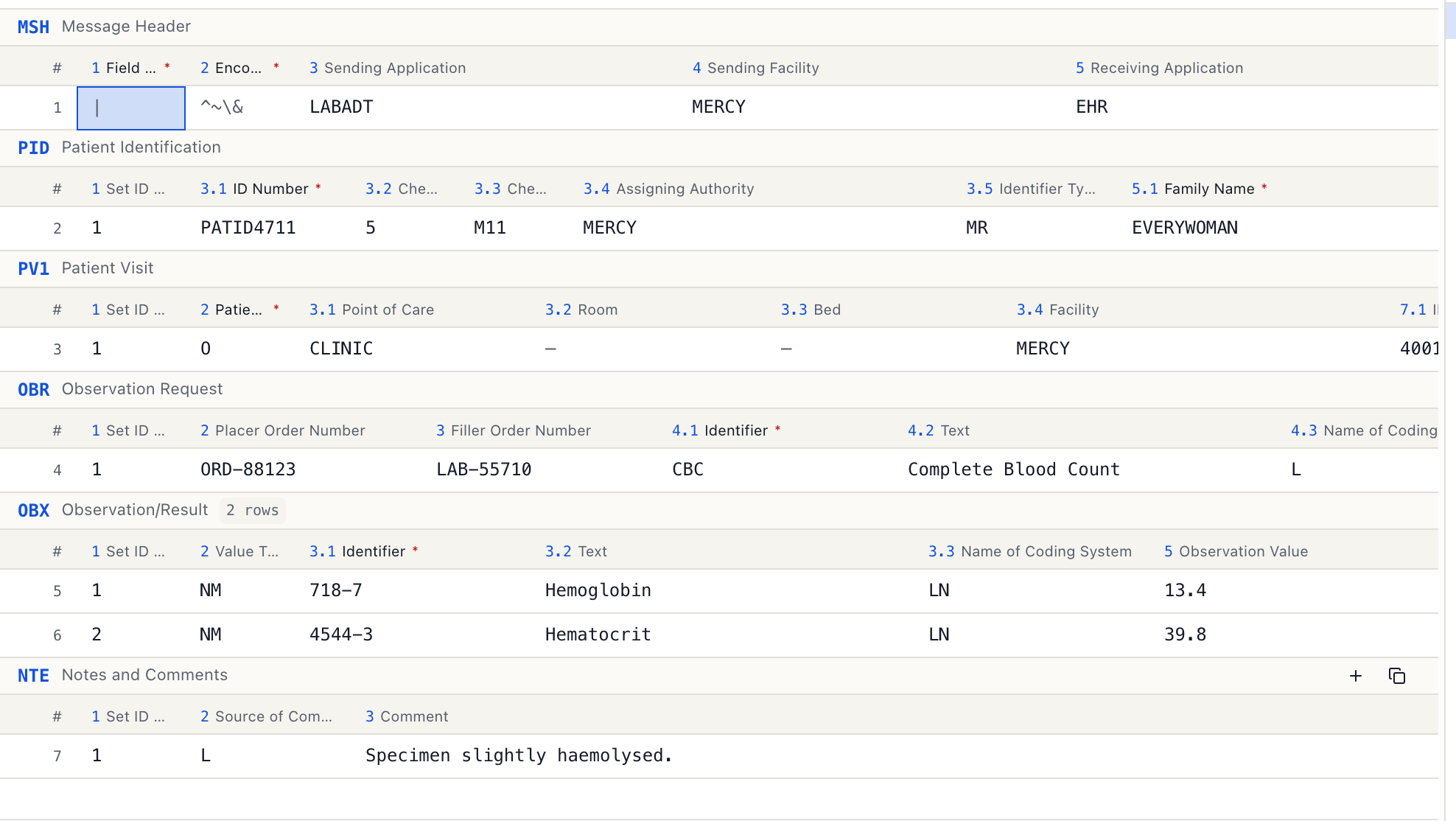
Grid is the same message as labelled tables, one table per run of segments. A composite field becomes one column per component, headed the way HL7 writes it: 3.1, 3.2, 3.3. The delimiters cannot be damaged here, because you never type them.
The two views share a caret. Click a cell in the grid and the text view moves to the same field, and the other way round.
The panels on the right
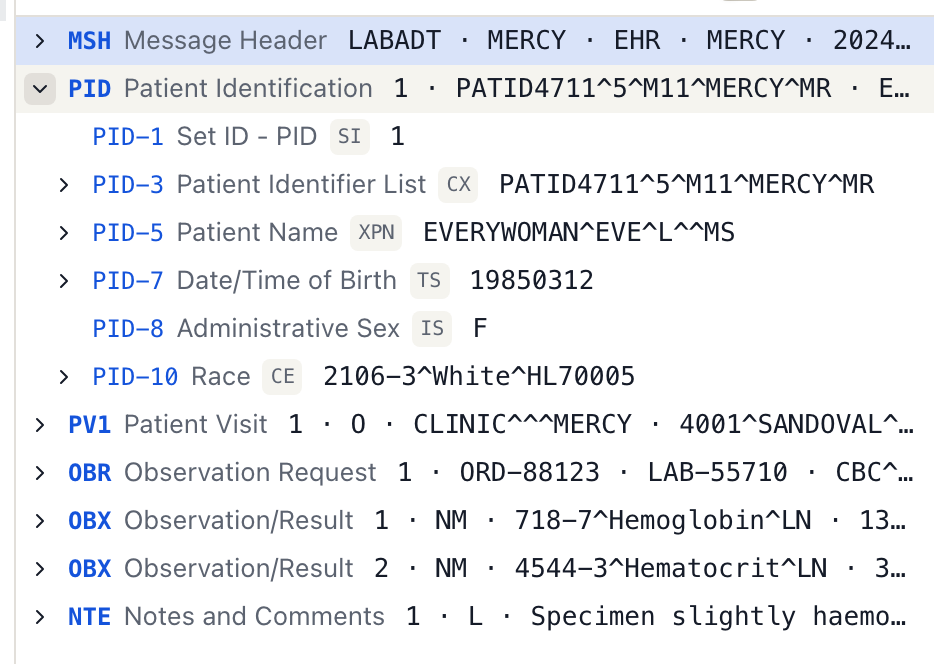
- Inspector is the message as a tree: segment, field, repetition, component, subcomponent. A value can be edited in place. The caret and the tree stay in step.
- Reference answers about the field the caret is in: what it is, its data type, its length, and the codes it accepts.
- Stats summarises the message: its type, its control id, who sent it and when.
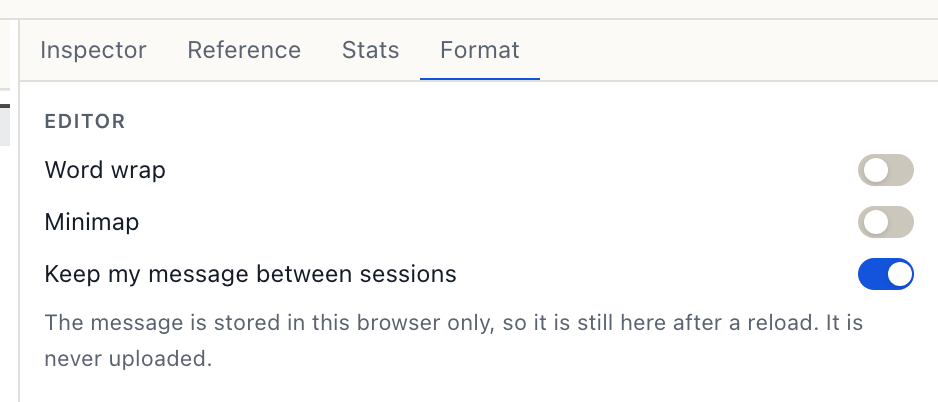
- Format holds the actions and settings that change how the message is presented rather than what it says.
Problems
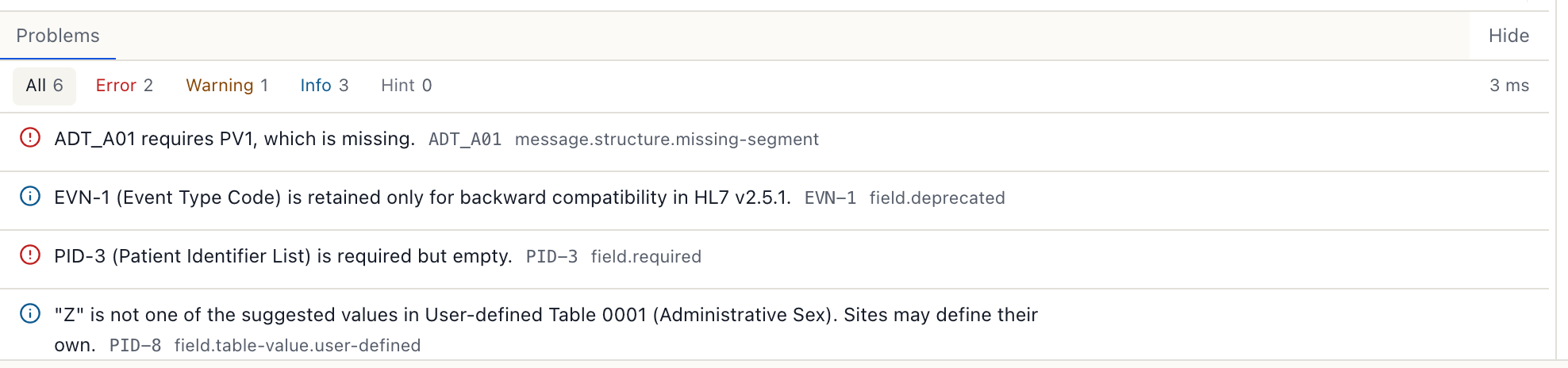
The panel along the bottom lists what the editor found, worst first. Click a finding to jump to the field it is about.
Findings are of two kinds and it is worth telling them apart. Most say the message is wrong: a date that is not a date, a code outside its table, a required field left empty. A few say the editor is short: a segment it has no definition for, or a structure it does not know. In the second case the message may be perfectly good.
Editing without breaking the message
The delimiters are the most common way a hand-edited HL7 message is silently corrupted. Shift one field and every field after it means something else. The editor is built so that cannot happen by accident.
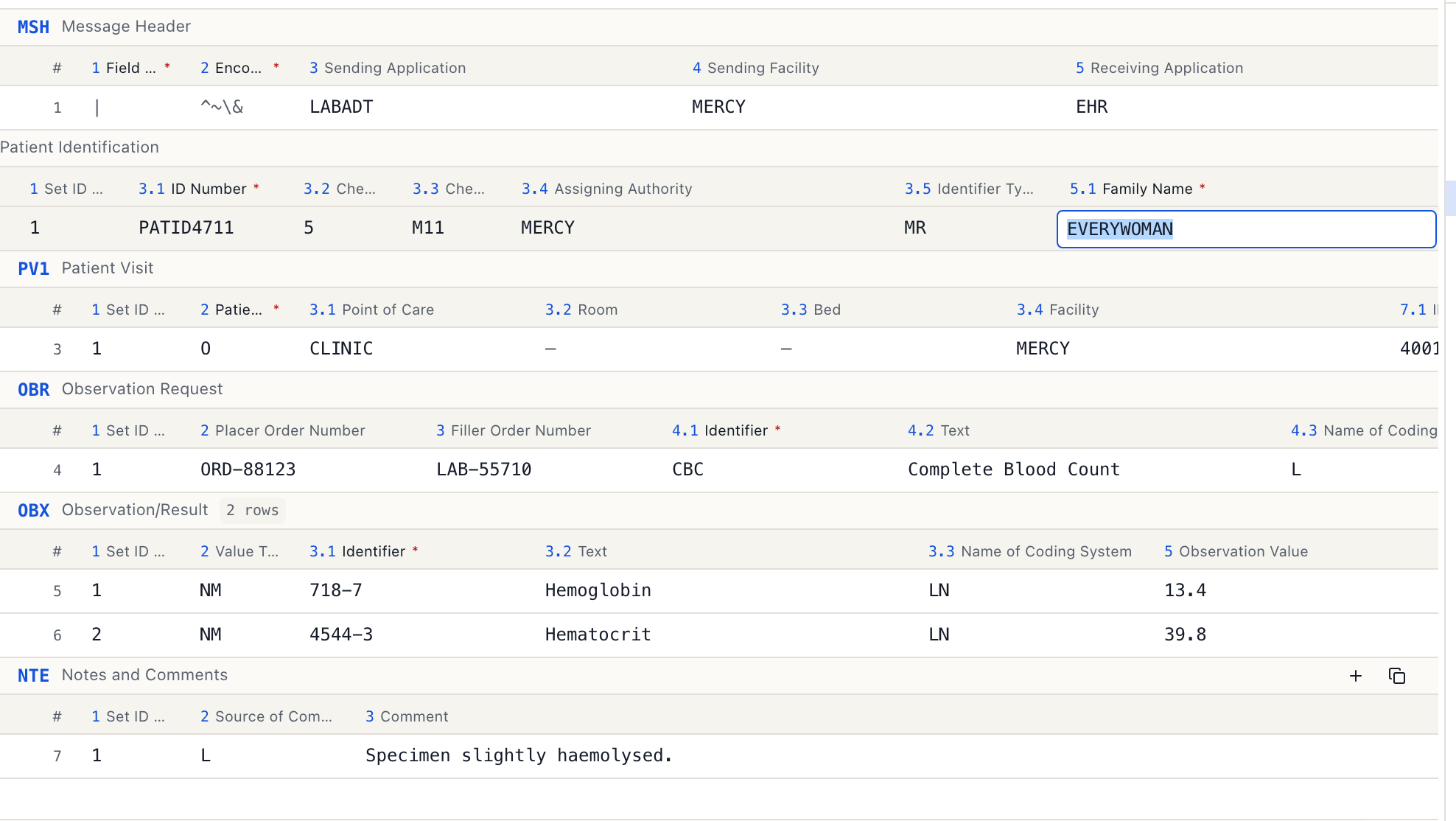
- Editing in the grid or the inspector writes only the value. A value containing a delimiter is escaped rather than allowed to split the field.
MSH-1andMSH-2are shown but cannot be edited in place. They are the delimiters themselves.- A field that repeats is read-only in the grid, because one input cannot express a repetition without ambiguity. Edit it in the Inspector.
Format
The Format panel holds word wrap, the minimap, and whether the message is kept between sessions. That last one is worth reading: when it is on, the message is stored in this browser and is still there after a reload. When it is off, nothing is written to disk and the message is lost when the tab closes.
Getting the message back out
Copy puts the message on the clipboard, terminated the way HL7 requires with a carriage return rather than the line feed the editor displays.
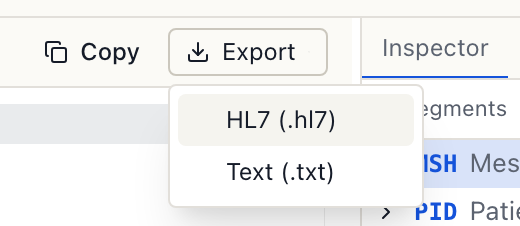
Export saves it as .hl7 or .txt. Both carry the same terminator, so a conformant receiver accepts the file as it is.
Working offline
After the first visit the editor is installed in your browser and opens with no network. Parsing, checking and editing all run on your device, so none of them need one.
One edition is stored up front. The others are fetched the first time a message declares them and kept from then on. Open a message from an edition you have never used while offline and the editor falls back to the nearest edition it holds, and the badge says so rather than describing the message with the wrong field names.
What this editor does not do
It does not send messages. A browser cannot open a socket, so there is no MLLP client here and no way for a message to leave the device by accident.
It does not cover every edition equally. v2.1 has no message structures in this build, so conformance is not checked for it. The badge says so when it applies.
It is not authoritative. For anything that matters clinically or contractually, the published standard is, and this editor is not.