
Cerner
Register a Cerner (Oracle Health) System app for population-level data extraction via SMART Backend Services.
Cerner (Oracle Health) Millennium exposes a SMART Backend Services surface for system-level access, no clinician, no patient consent at request time. You authenticate with a JWT client assertion signed by your private key and exchange it for an access token scoped to a tenant. Use this for population-level pulls, Group-based bulk export, and scheduled extracts. For in-PowerChart clinician launches, see the Cerner Practitioner guide instead.
This is a step-by-step guide to registering a System-type app on the Cerner Code Console, pre-registering Medblocks’ JWKS on Cerner Central, wiring the Client ID into Medblocks, and validating an end-to-end token exchange against the public Cerner code sandbox.
For Oracle’s reference on the auth flow, see the Authorization Framework overview and specifically Requesting Authorization on Behalf of a System.
Sign in to Cerner Code Console
Go to code.cerner.com/developer/smart-on-fhir/apps and sign in with your Cerner Code account. You will land on My Applications.
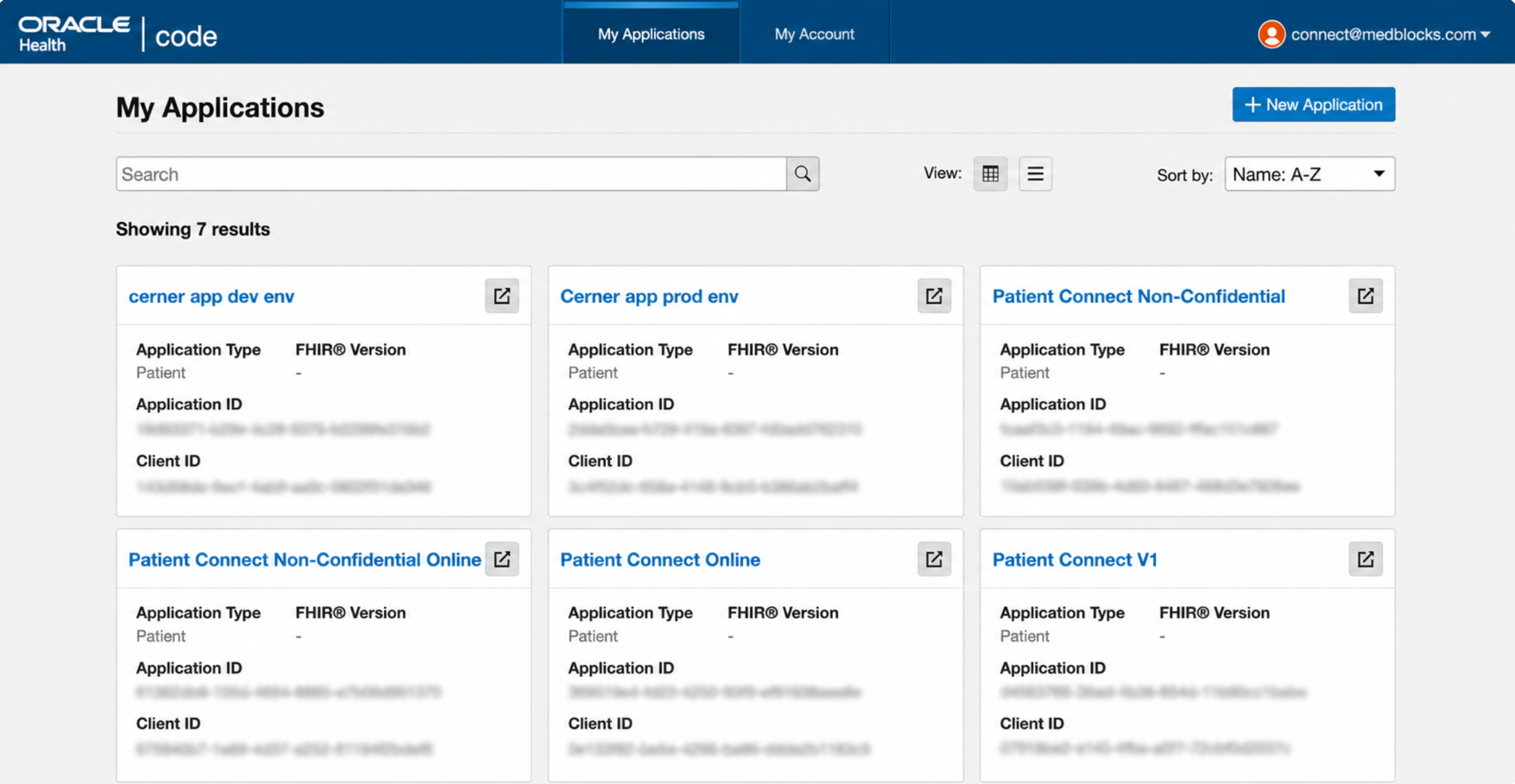
Click + New Application in the top right to start a new registration.
Basic Information and Application Type
The first step of the wizard captures the basic details that determine which products and scopes appear on the later screens. System apps are configured differently from Provider apps, follow these exact selections.
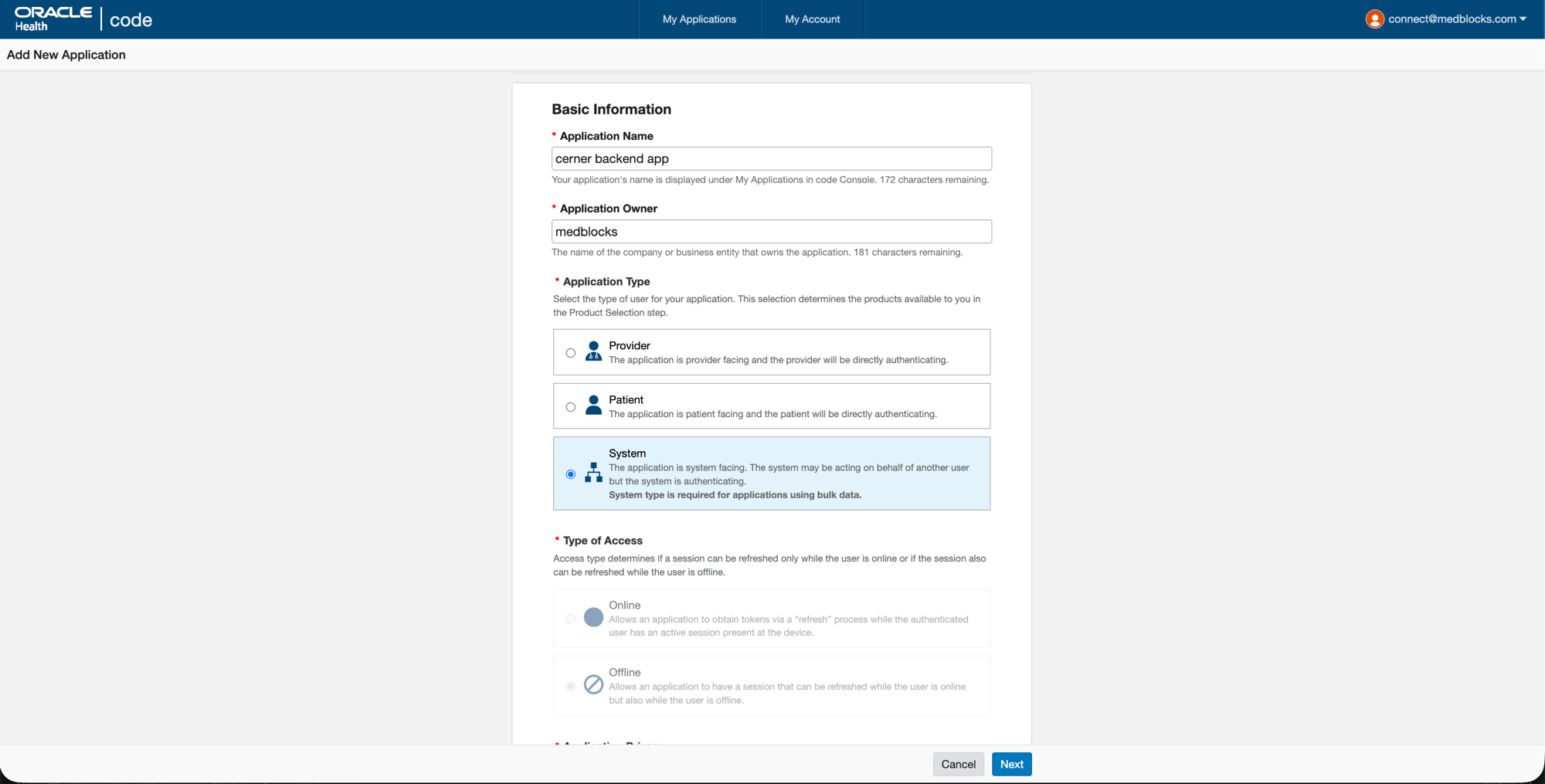
- Application Name: anything descriptive, this is the name shown for the app inside Cerner Central.
- Application Owner: your company name (Medblocks for our case).
- Application Type: System, this is the SMART persona for backend services running without a clinician or patient context.
- Type of Access: Offline, the only option Cerner offers for System apps.
SMART Version, and Intended Audience
Scroll down for the rest of the first step.
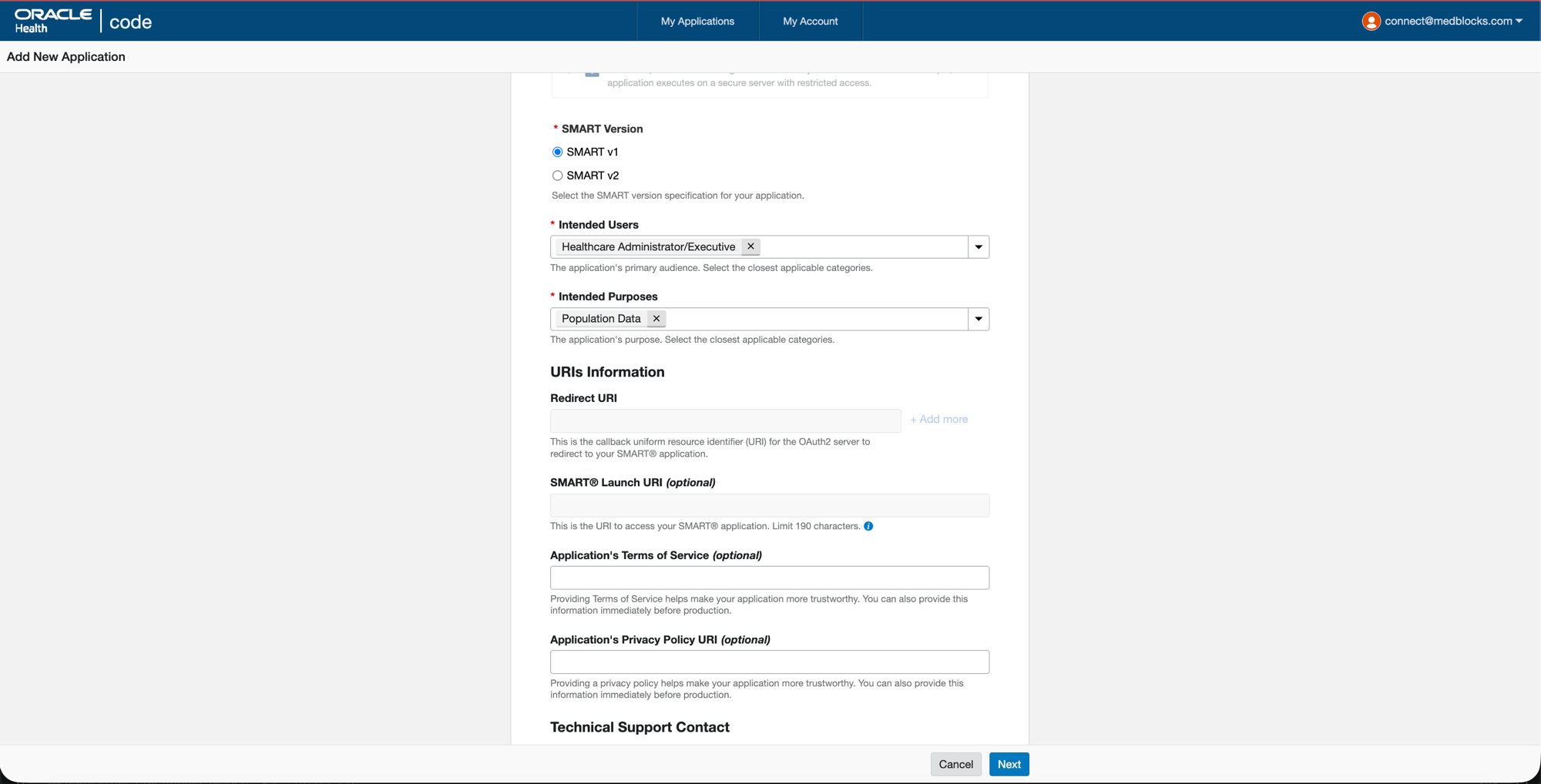
- SMART Version: SMART v1, Cerner sandbox and most production tenants are on v1.
- Intended Users: Healthcare Administrator/Executive. System services are not user-facing, this is the closest match.
- Intended Purposes: Population Data.
- Redirect URI: blank. There is no user redirect in the
client_credentialsflow. - SMART Launch URI: blank. System apps are not launched from PowerChart.
- Privacy Policy / Terms of Service / Technical Support: blank for sandbox, recommended for production.
Click Next.
Product Selection
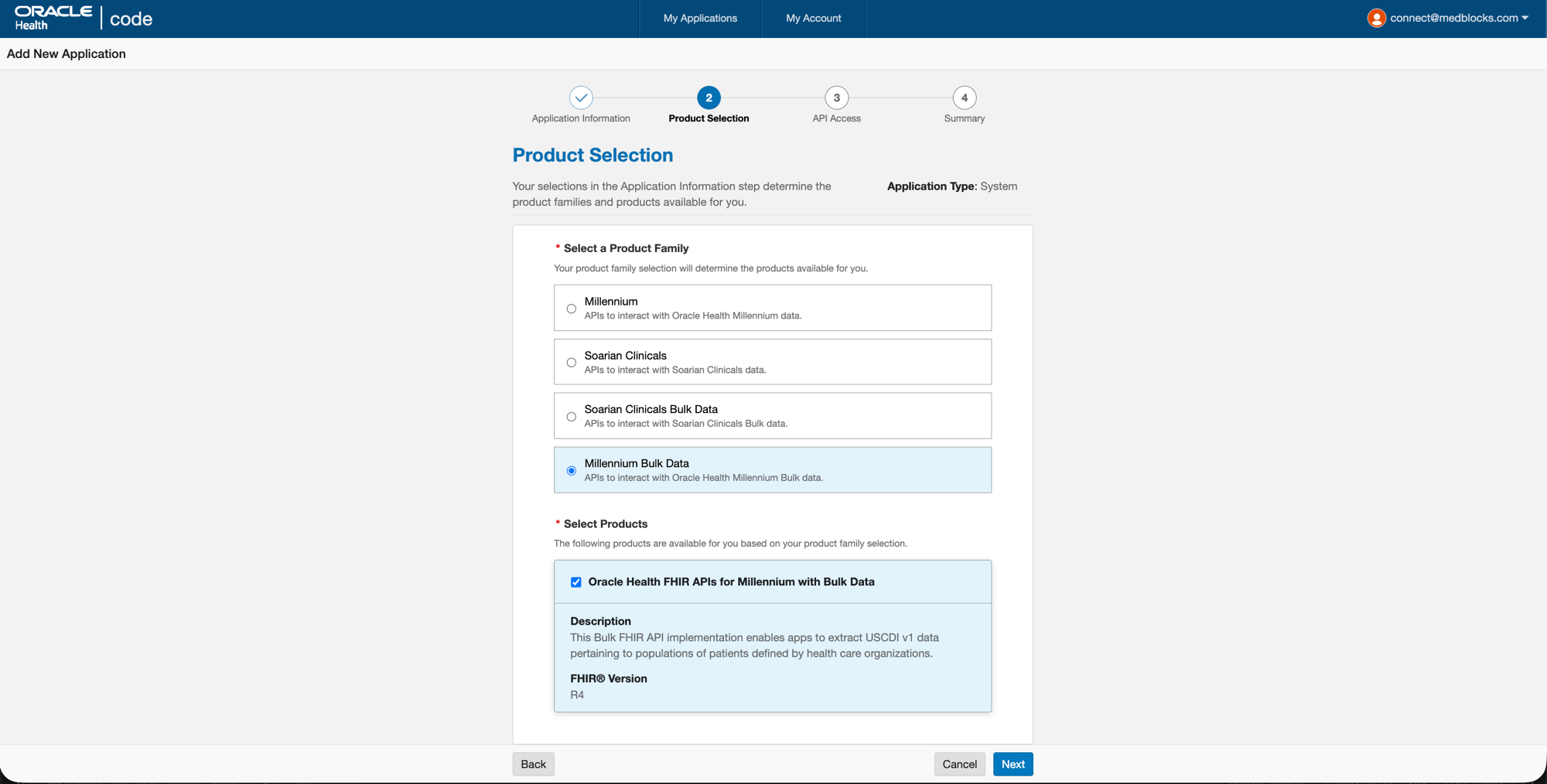
- Product Family: Millennium Bulk Data, this is the SMART Backend Services product (Group-level
$export, system-level reads). The plain Millennium family is for user-context FHIR. - Select Products: tick Oracle Health FHIR APIs for Millennium with Bulk Data, FHIR R4.
If Cerner allows multiple selections, also tick Millennium so you can issue single-resource system reads in addition to bulk exports. If the picker is radio-style, Millennium Bulk Data alone is the right choice for the typical backend pull.
Click Next.
API Access (Scopes)
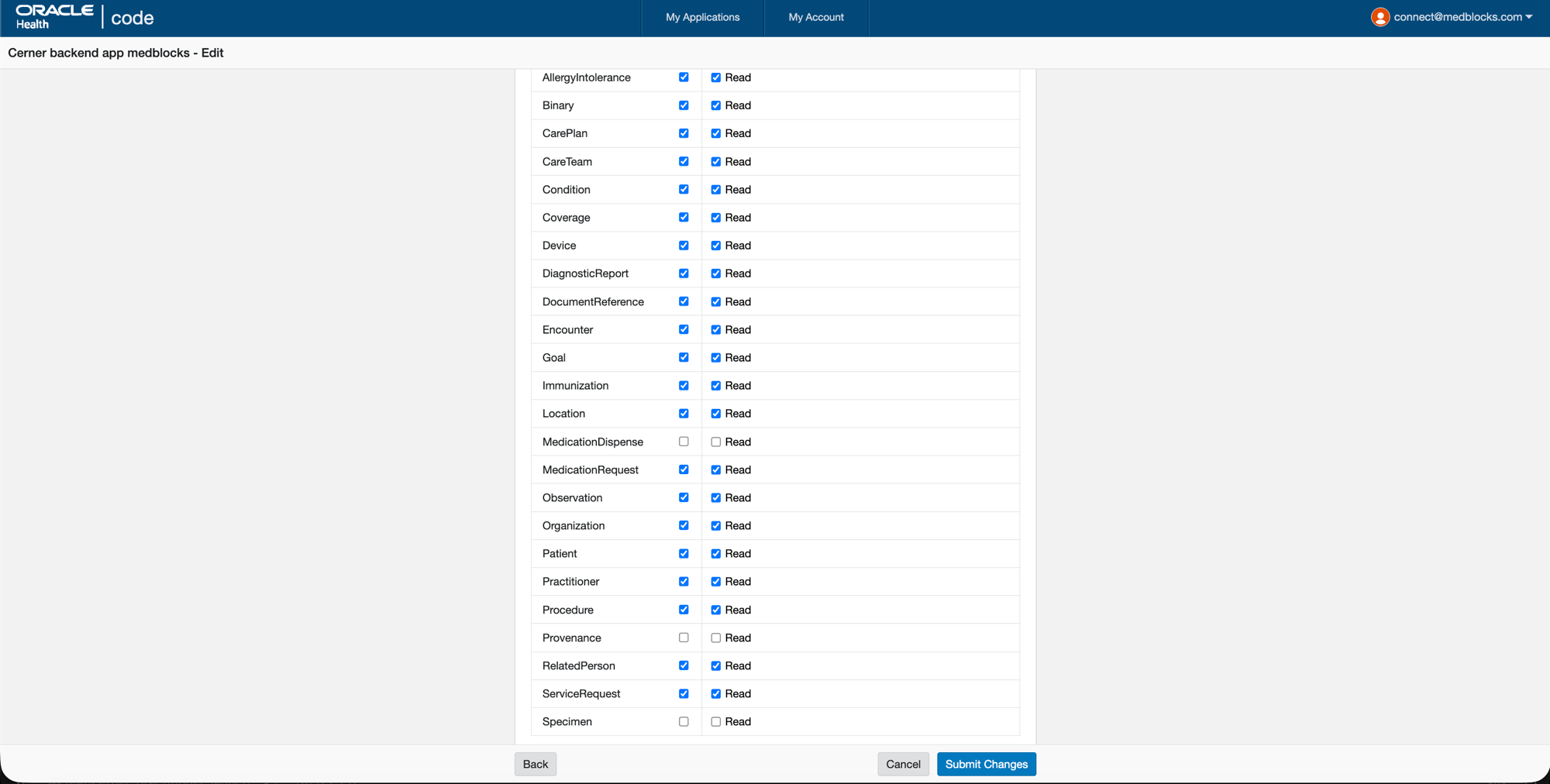
The System Product APIs table maps to system/* scopes.
Request only what your worker actually reads plus what its references resolve to — Cerner production review scrutinizes scope inflation and will bounce apps requesting more than they use. Medblocks’ backend worker issues the USCDI v1 + v3 resource set from src/server/jobs/fhir/queries/cerner.ts, then follows references (Practitioner, Organization, Location, Binary, RelatedPerson) from those responses. Each has a system/<Resource>.read scope in Oracle’s R4 API catalogue. Tick Read on:
- AllergyIntolerance
- Binary
- CarePlan
- CareTeam
- Condition
- Coverage
- Device
- DiagnosticReport
- DocumentReference
- Encounter
- Goal
- Immunization
- Location
- MedicationRequest
- Observation
- Organization
- Patient
- Practitioner
- Procedure
- RelatedPerson
- ServiceRequest
Leave MedicationDispense, Provenance, and Specimen unticked — the worker doesn’t read them and they’d flag the review. If the query set expands later, come back and tick the added resources.
Click Next, review the summary, and Submit.
Application Details Page
After submission you land on the application detail page. The layout is the same as the Provider app version covered in the Cerner Practitioner guide, the differences for the System app are:
- Application Type reads System (not Provider) and Type of Access reads Offline.
- Redirect URI and SMART Launch URI are empty, system apps don’t use them.
- Product is Oracle Health FHIR APIs for Millennium with Bulk Data.
- The System Product APIs scopes you ticked in Step 5 appear at the bottom — verify all twenty-one resources are listed.
Copy the Client ID for Medblocks, then click Cerner Central System Account Details to continue on Cerner Central.
Cerner Central System Account and JWKS
System apps authenticate with a JWT signed by Medblocks’ private key. Cerner needs to fetch your public key (JWKS) at runtime to validate the signature. The JWKS URL is pre-registered on the System Account in Cerner Central, not on the Code Console itself.
The flow is identical to the Provider app’s JWKS setup, see the Cerner Practitioner guide for the System Account page and the success-state screenshots.
From the Code Console application detail page, click Cerner Central System Account Details to open the System Account. You’ll land on a page with Account Details, Secrets, and JSON Web Key Set sections:
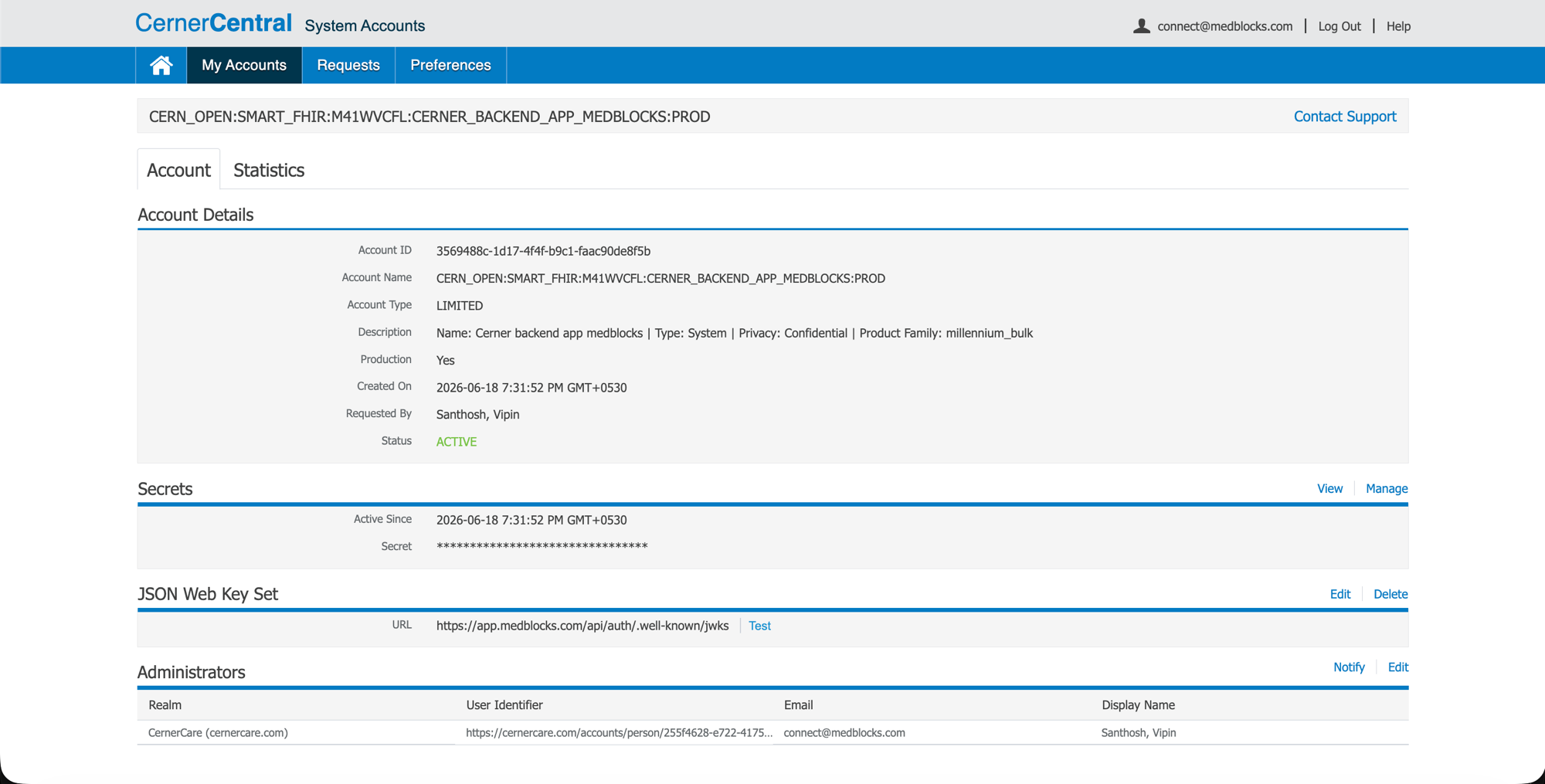
Then:
- Copy the Account ID (this is your Client ID for Medblocks).
- Click Edit next to JSON Web Key Set.
- Select the URL (Strongly Recommended) radio.
- Paste:
https://app.medblocks.com/api/auth/.well-known/jwks - Click Save.
- Back on the account page, click Test next to the JWKS URL.
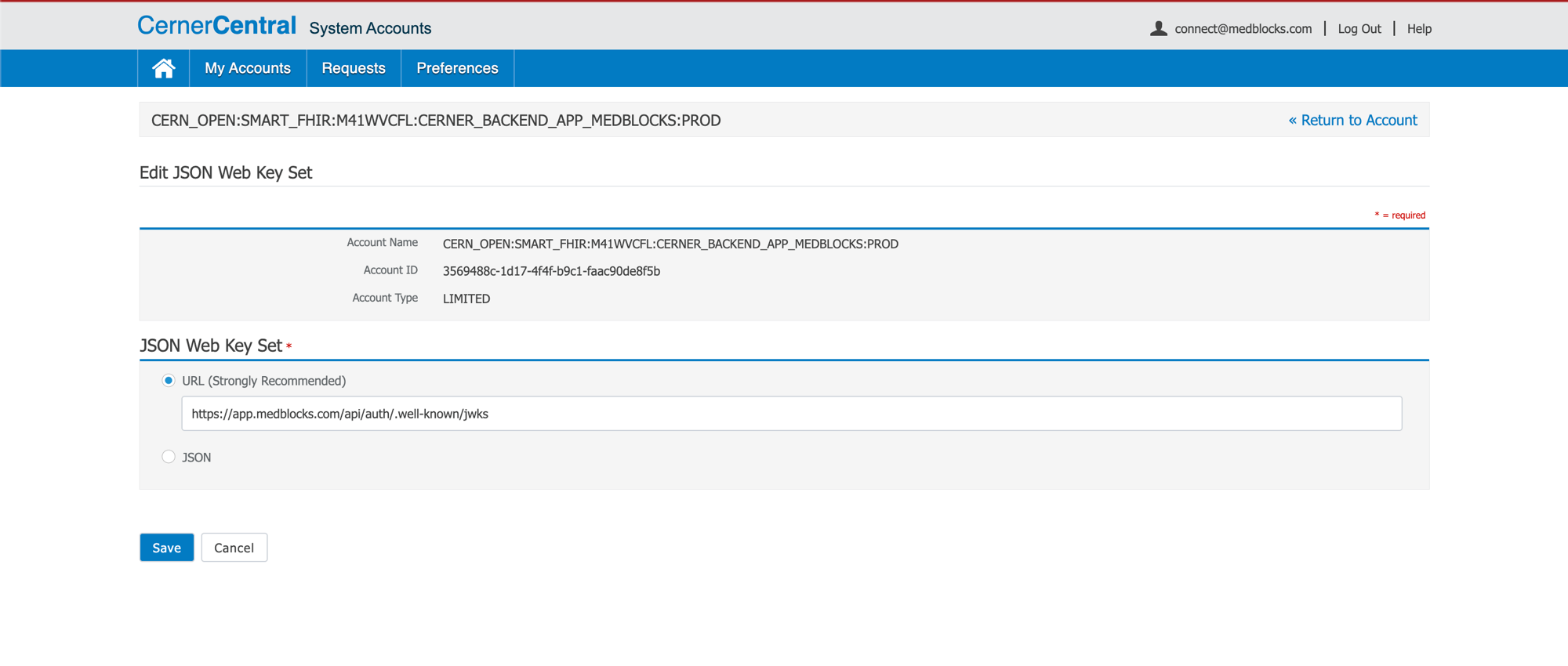
Medblocks serves the same JWKS from production, dev, and local environments (the underlying keypair is shared), so this single URL works regardless of where the JWT is signed. The Test action confirms Cerner can fetch your key and will accept the JWT assertions Medblocks signs.
Configure Medblocks
- Go to Settings.
- Select Connections.
- Find Cerner Backend and open it.
- Paste the Client ID (the Account ID from Cerner Central), and Save.
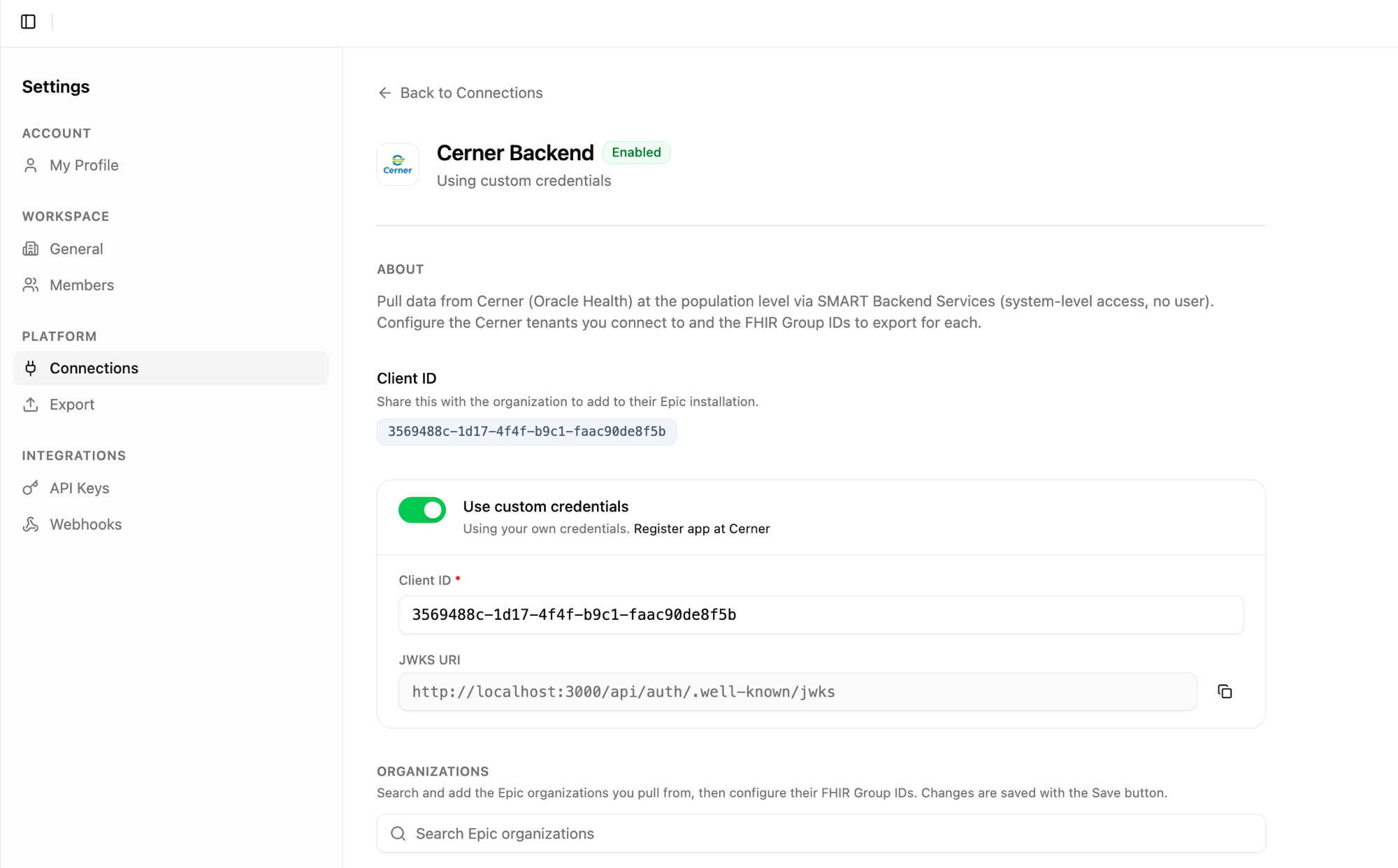
You do not need to paste a client secret, system JWT auth uses asymmetric keys signed with Medblocks’ global private key, not a shared symmetric secret.
Test against the Cerner Code Sandbox
Backend services have no UI to click through, the sandbox test is just two HTTP calls. Cerner’s code sandbox tenant ec2458f2-1e24-41c8-b71b-0e701af7583d accepts your System app’s JWT and serves synthetic FHIR resources, so the full chain (JWKS fetch, JWT validation, token issuance, FHIR read) can be exercised from a single script.
A minimal Bun script using Medblocks’ helpers:
import fs from "fs";
import * as jose from "jose";
import { generateClientAssertion } from "@/server/auth/utils/jwt";
import { exchangeClientCredentialsWithJwtAssertion } from "@/server/auth/utils/token-exchange";
import { JWT_KID } from "@/server/config";

const CLIENT_ID = "<your-system-app-client-id>";
const TENANT = "ec2458f2-1e24-41c8-b71b-0e701af7583d";
const TOKEN_ENDPOINT = `https://authorization.cerner.com/tenants/${TENANT}/protocols/oauth2/profiles/smart-v1/token`;
const FHIR_BASE = `https://fhir-ehr-code.cerner.com/r4/${TENANT}`;
// Minimal smoke-test scope — the app is registered with the full 16-resource set (Step 5),
// but a Patient read is enough to prove the JWKS → token → FHIR chain works.
const SCOPE = "system/Patient.read";

const pem = fs.readFileSync(process.env.JWT_PRIVATE_KEY_PATH!, "utf8");
const privateKey = await jose.importPKCS8(pem, "RS384");
const assertion = await generateClientAssertion(CLIENT_ID, TOKEN_ENDPOINT, privateKey, JWT_KID);

// 1. Exchange JWT for a system access token.
const token = await exchangeClientCredentialsWithJwtAssertion({
  tokenEndpoint: TOKEN_ENDPOINT,
  clientAssertion: assertion,
  scope: SCOPE,
});
console.log({ scope: token.scope, expires_in: token.expires_in });

// 2. Read a synthetic Patient with the Bearer token.
const res = await fetch(`${FHIR_BASE}/Patient/12724065`, {
  headers: { Authorization: `Bearer ${token.access_token}`, Accept: "application/fhir+json" },
});
console.log(await res.json());
What success looks like:
- Step 1 returns
{ scope: "system/Condition.read system/Observation.read system/Patient.read", expires_in: 570, access_token: "eyJraWQiOi..." }. - Step 2 returns a Patient resource for
SMART, WILMA(DOB 1990-09-15, Active).
If step 1 returns invalid_client, the JWKS URL on Cerner Central is wrong or Cerner can’t reach it, retry Test on the System Account page. If step 2 returns 400 at least one of _id, identifier..., the token is valid, you’re hitting a Cerner search restriction, hit a specific resource id (/Patient/12724065) instead of a search.
Going to Production
Cerner production tenants are per-customer. Each hospital’s IT team must explicitly authorize your System app for their tenant before any token requests will succeed against real PHI.
- Your customer’s Cerner administrator adds your Client ID (Account ID) to their tenant via Cerner Central.
- You add their tenant’s FHIR base URL as a
fhir_sourcerow withenvironment=production. - The customer’s Medblocks org points at that tenant for the backend section.
Cerner production access for a System app is gated by per-tenant onboarding plus an Oracle Health review of your scope set, there is no self-serve “go live” button on the Code Console itself.
Need help?
Running into an issue? Get support from our team and we will get back to you.
How is this guide?