
Aetna
Guide to integrate with the Aetna Patient Access API for Medicare Advantage and commercial members' clinical + claims data.
Aetna is one of the largest US health insurers and exposes a patient-facing FHIR API under the CMS Interoperability Rule (CMS-9115-F). Members can authorize a third-party app to retrieve their demographics, coverage, claims, medications, observations, and procedures over SMART on FHIR. Integrate with Aetna to enhance care coordination for Aetna’s Medicare Advantage, commercial, and dental members.
This is a step-by-step guide to registering a patient-facing app on Aetna’s Interoperability API Developer Portal, testing against the sandbox, and submitting for production access. The Patient Access product exposes the full US Core / CARIN BB Patient-compartment surface — AllergyIntolerance, CarePlan, CareTeam, Condition, Coverage, Device, DiagnosticReport, DocumentReference, Encounter, ExplanationOfBenefit, Goal, Immunization, MedicationDispense, MedicationRequest, Observation, Patient, and Procedure via search — plus reference-only reads for Practitioner, PractitionerRole, Organization, Medication, Location, and Binary. Full list at /v2/patientaccess/metadata.
Setup Guide
Prerequisites
If you’re serious about serving US patients and customers, having a US company will help with onboarding across the board. Stripe Atlas and StartFleet can get you a registered US entity with a real address in minutes.
For a US phone number, Tello gives you a virtual SIM with a real number. Grab a domain on Namecheap and set up a business email with Google Workspace. If you’re using the Medblocks Platform, you can use app.medblocks.com as your domain and skip the domain setup entirely.
Since you’ll be serving US Aetna members, you’ll need US infrastructure anyway. Set up a VM in a US cloud region, install Tailscale, and use it as your exit node, this gives you a clean, stable US IP for development and testing.
You’ll also need:
- A publicly accessible domain with HTTPS for your redirect URI, or use
app.medblocks.comif you’re on the Medblocks Platform - A server-side backend that can handle the OAuth callback and store tokens securely (the client secret must never reach the browser)
- A privacy policy and terms of service published at a stable URL
Create a Developer Portal Account
- Go to the Aetna Interoperability API Developer Portal and click Login / Register.
- Enter your company email, first name, and last name. Review and accept Aetna’s Terms of Use.
- Aetna emails a 6-digit security code. Enter it within 10 minutes.
- Create a username and password. Sign in to land on the Dashboard.
Submit the Sandbox Questionnaire
Sandbox access is gated by a role-specific questionnaire. Aetna’s Interoperability team reviews submissions and responds within 2–4 business days.
- From the Dashboard, click My Applications → Create New.
- For I Am Representing, select Third Party Application (this gives access to Patient Access, Payer-to-Payer, and RTPBC APIs). EHR and Payer roles have their own separate questionnaires.
- For Application Environment, select Sandbox.
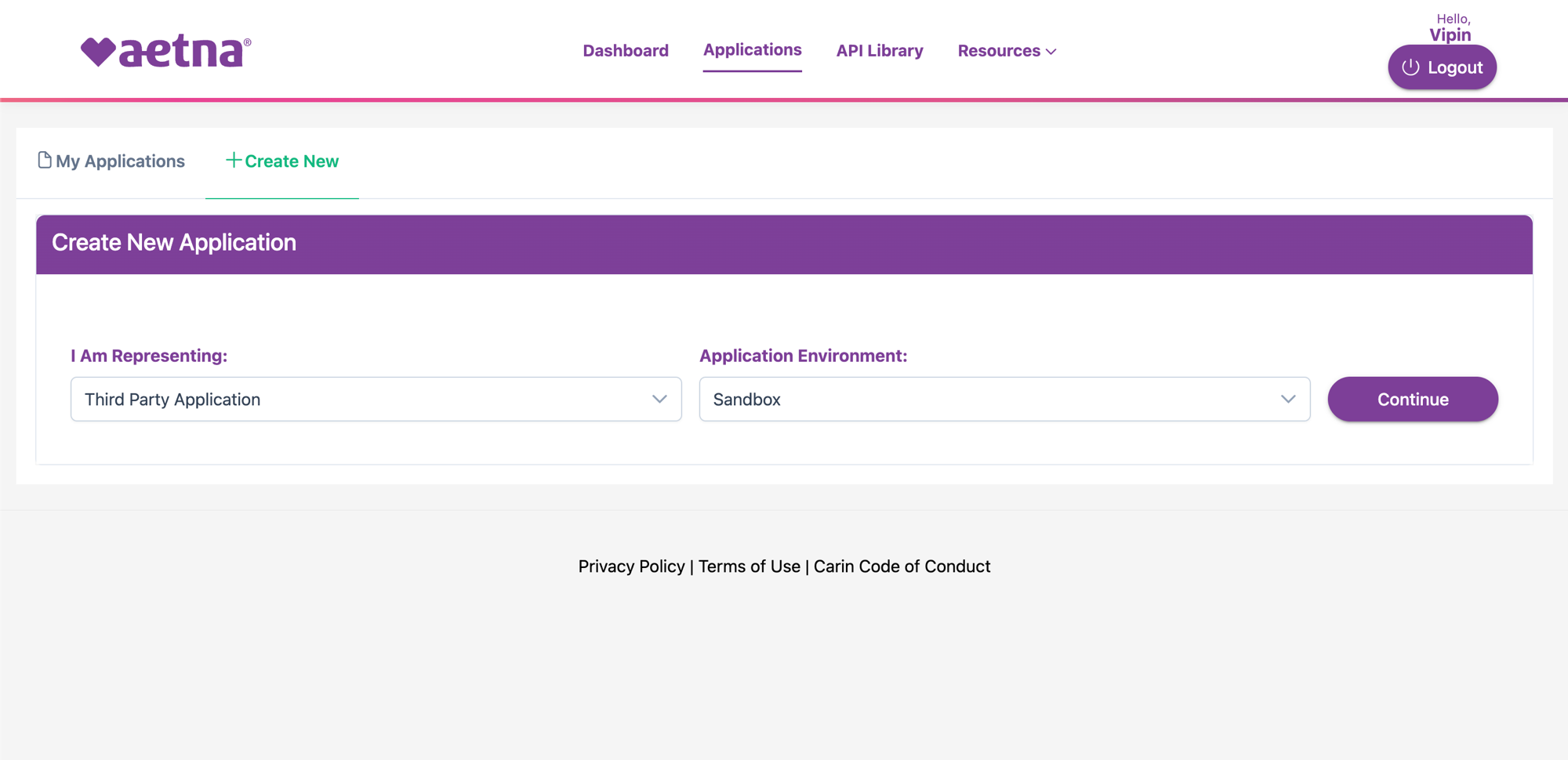
- Click Continue. A page opens with a link to the role’s Questionnaire, open it, fill in your organization details, intended use, and security posture, and submit.
- Track approval status on the Dashboard under My Approvals. Once your sandbox questionnaire is approved, the Create Application button on that row activates.
Create the Sandbox Application
- From the approved row in My Approvals, click Create Application. The same Create New form opens, this time with an additional Application Name and Callback URL field.
- Fill in:
- Application Name, your product’s user-facing name. This appears on the Aetna consent screen members see during authorization.
- Callback URL, where Aetna redirects after the member authorizes. Must be HTTPS in production; sandbox accepts
http://localhost:3000/api/auth/smart/callbackfor local development. Register every URL you intend to use end-to-end as a comma-separated list. If you’re on the Medblocks Platform, includehttps://app.medblocks.com/api/auth/smart/callbackplus any staging hostnames you deploy to.
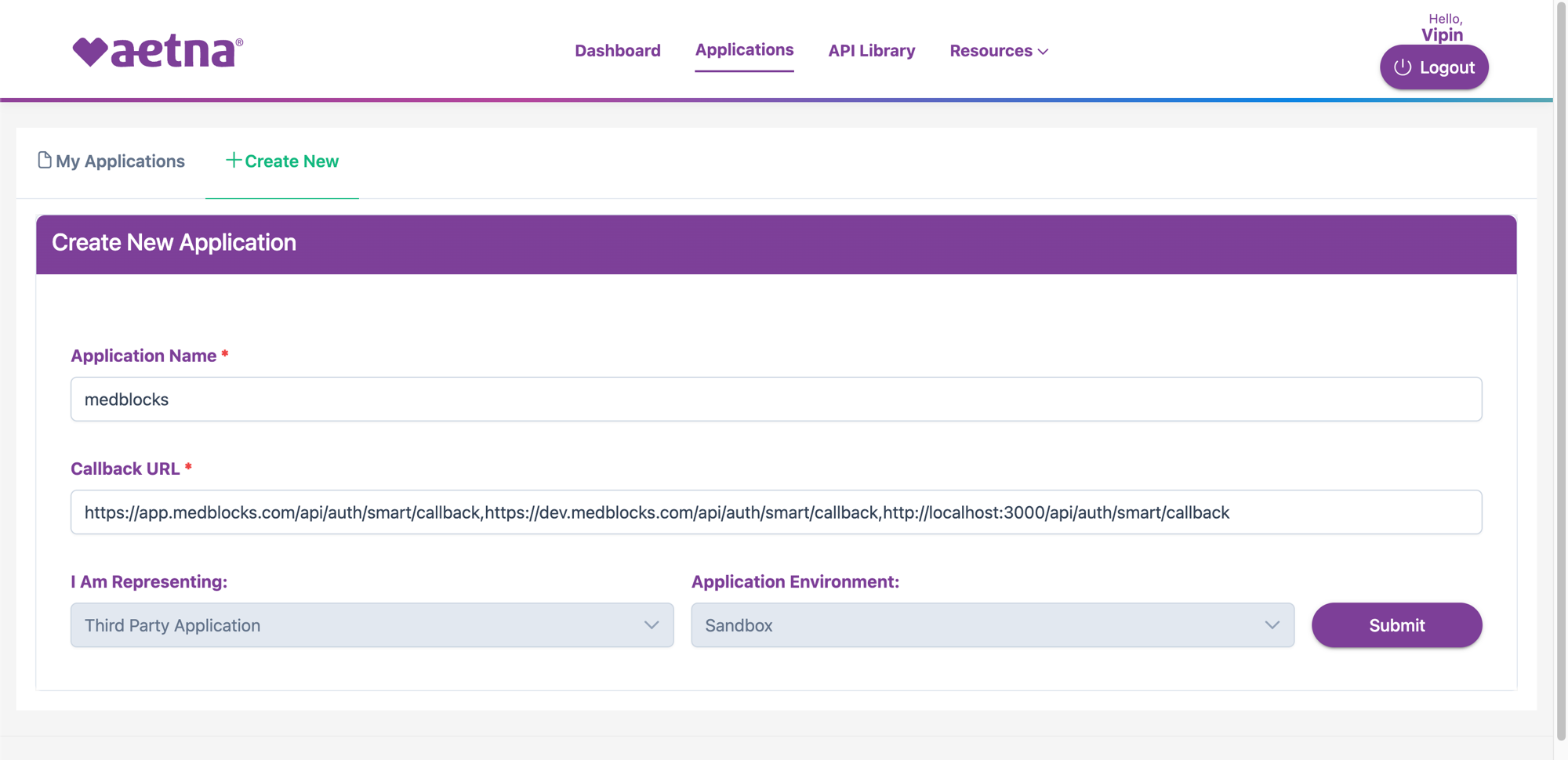
- Click Submit. Aetna displays the Client ID and Client Secret once with the message “Please save the client secret for this App, client secret will not get displayed again for this App.” Copy both into your secret manager immediately, there is no “show again” option. If you lose the secret, you’ll have to delete the app and start over.
Subscribe to Products
Subscribing your application to the right products is what actually grants the OAuth flow access to FHIR resources. Without active product subscriptions, the Aetna login page renders blank during the OAuth flow, this is the most common gotcha.
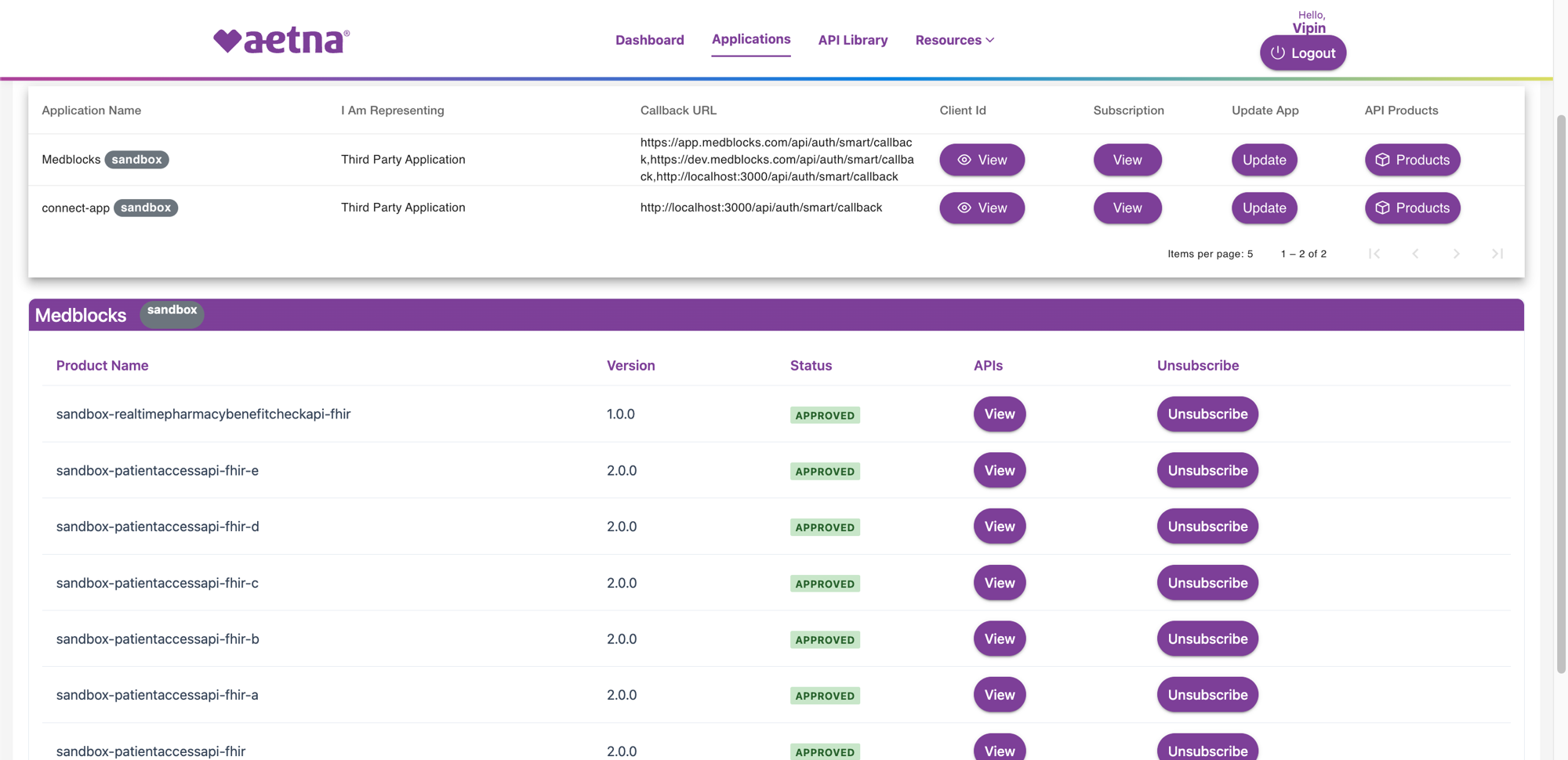
- From My Applications, find your app and click Products.
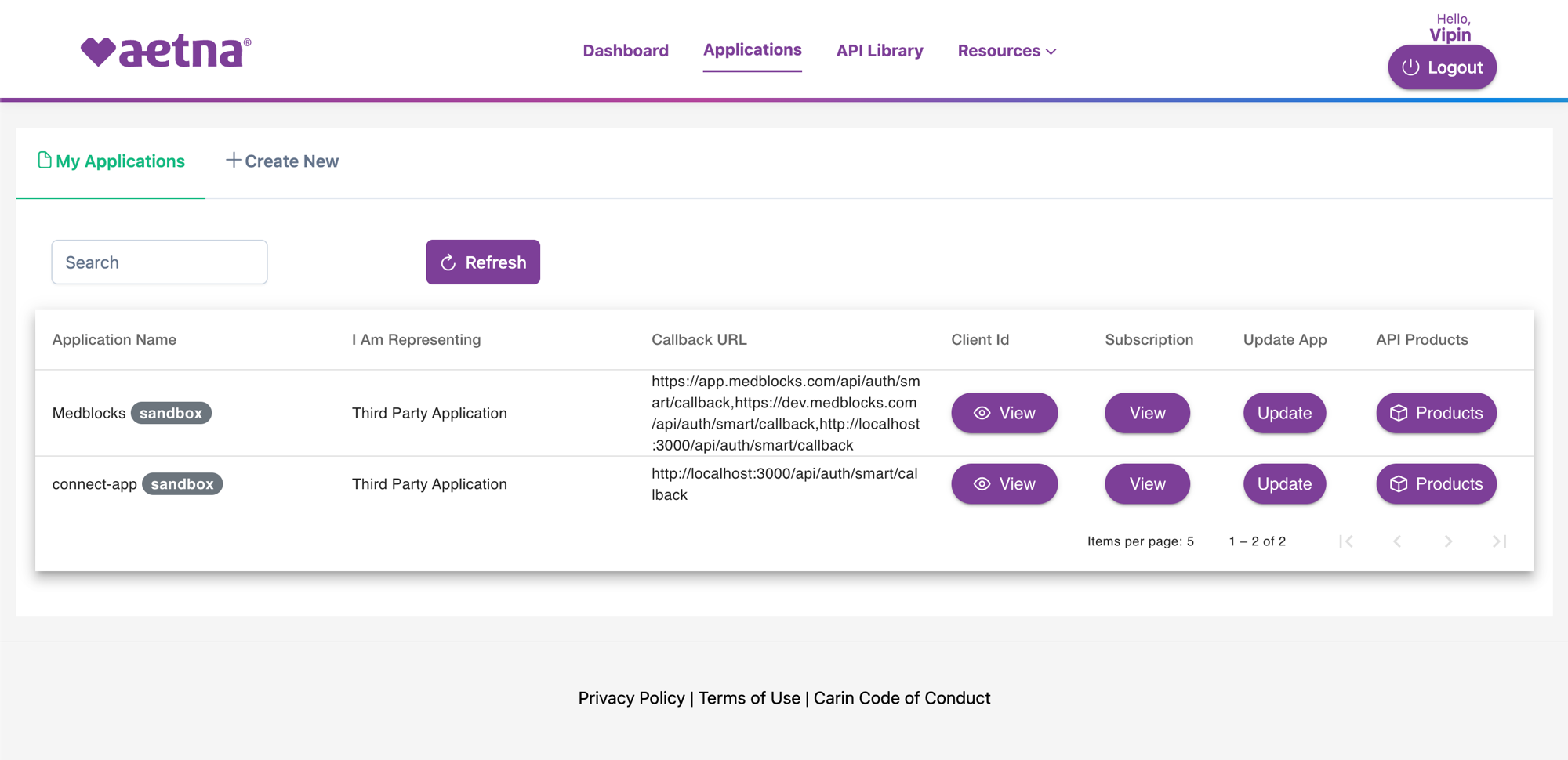
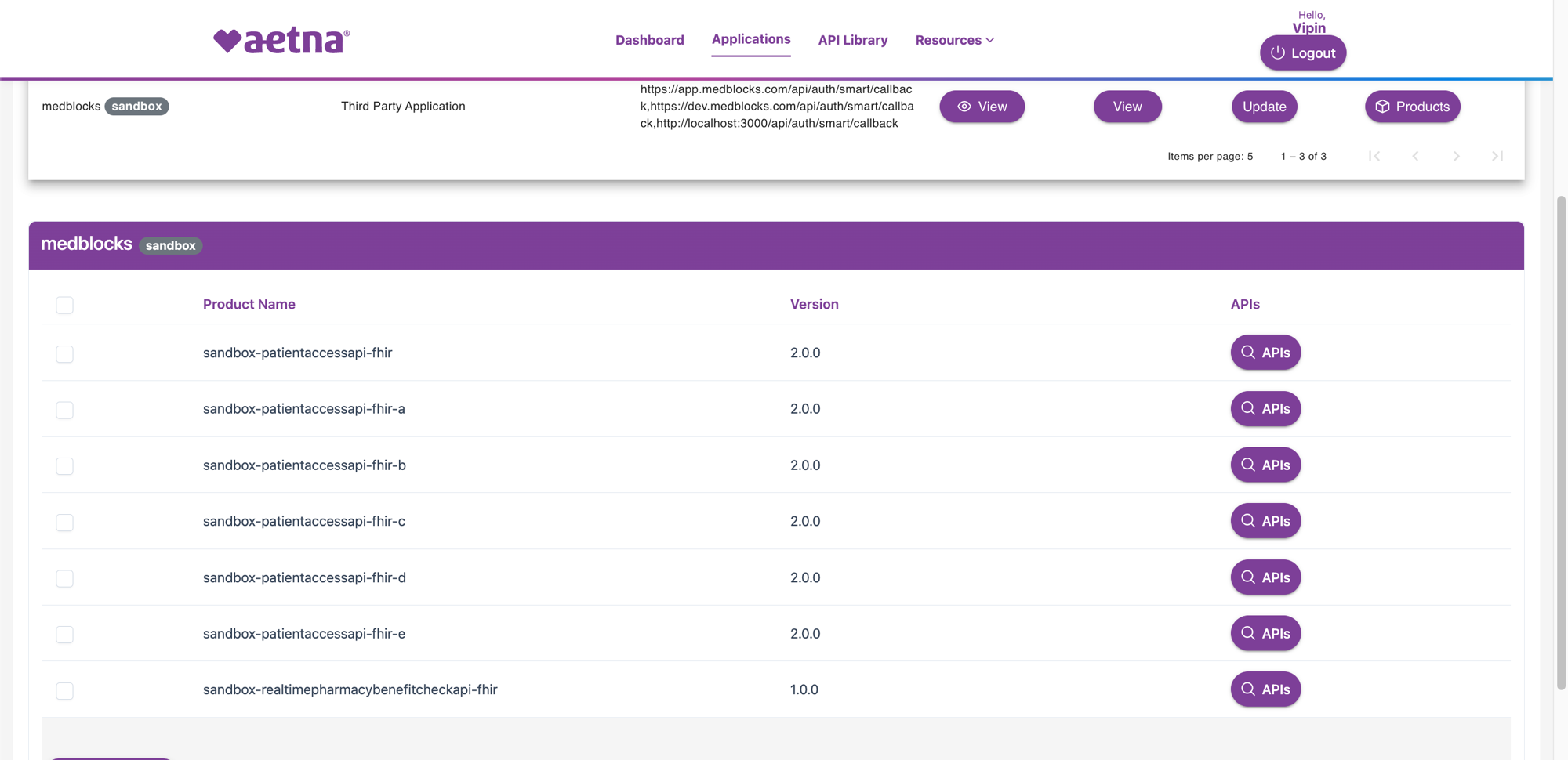
- Tick the checkboxes for all Patient Access products for Third Party applications:
- sandbox-patientaccessapi-fhir
- sandbox-patientaccessapi-fhir-a
- sandbox-patientaccessapi-fhir-b
- sandbox-patientaccessapi-fhir-c
- sandbox-patientaccessapi-fhir-d
- sandbox-patientaccessapi-fhir-e
- sandbox-realtimepharmacybenefitcheckapi-fhir
- Click Subscribe Now and confirm. Wait 2–5 minutes for the subscription to propagate before testing, Aetna explicitly calls out the delay in their docs.
- Each subscribed product shows APPROVED status once active.
Configure Medblocks
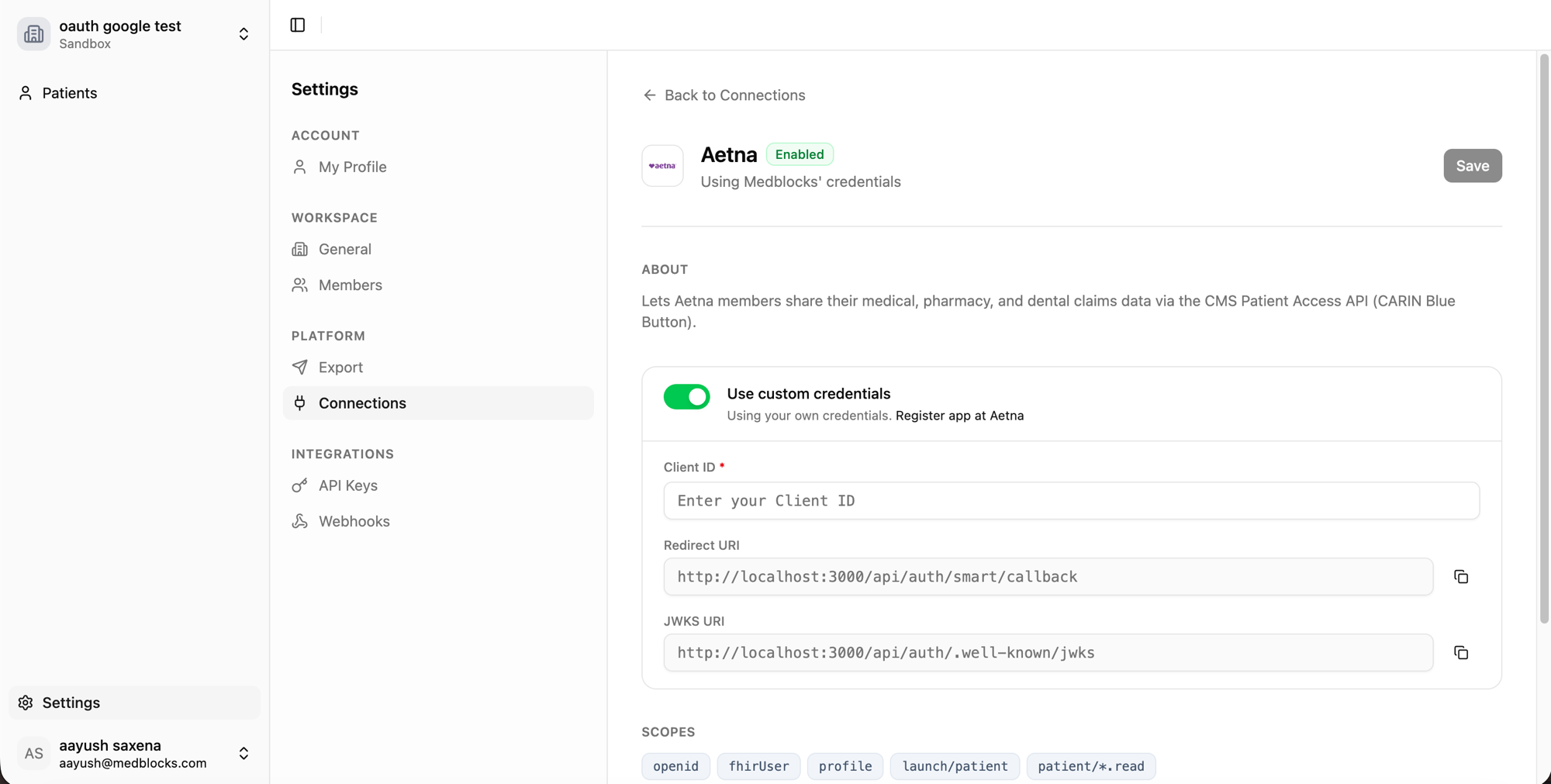
- In your Medblocks dashboard, go to Settings → Connections.
- Find Aetna in the list and open it.
- Toggle Use custom credentials and paste the Client ID from the Aetna portal.
- Check Enter client secret and paste the Client Secret. Aetna’s token endpoint requires
client_secret_basicauth, so the secret is required (unlike Epic and Cerner, which use PKCE orprivate_key_jwt). - Save.
That’s it, the platform handles the rest of the OAuth flow, including the Aetna-specific quirks (aud param, skin=skin13 query param, HTTP Basic auth on the token endpoint, and the deeper /v2/patientaccess resource path).
Test with Sandbox Synthetic Users
Aetna’s sandbox uses synthetic test members with pre-populated claims. No real Aetna member account is required.
Sandbox endpoints (advertised at the Aetna sandbox .well-known/smart-configuration):
The aud value is the auth root, not the resource base, they differ on Aetna, which trips most off-the-shelf SMART clients. Default sandbox test credentials documented by Aetna: VTETestUser01 / FHIRdemo2020.
Test flow:
- From your app, trigger an Aetna connect.
- Browser redirects to
vteapif1.aetna.com/fhirdemo/v1/fhirserver_auth/oauth2/authorize?...withaud=https://vteapif1.aetna.com/fhirdemoandskin=skin13. - Aetna redirects to its AccountManager login page. Sign in with the sandbox credentials.
- Consent screen, click Allow.
- Aetna redirects to your registered callback with
?code=...&state=.... - Your backend exchanges the code for tokens. Aetna’s token endpoint advertises
client_secret_basic, credentials go in the Authorization header, not the body, alongside the PKCEcode_verifier. - Token response includes
access_token,refresh_token,patient(synthetic member id), andscope. Noid_tokenwhenopenidisn’t requested, use thepatientclaim to fetchPatient/{id}directly. - FHIR resources live at
/v2/patientaccess/{Resource}. Search-type resources take?patient={id}(e.g.Coverage?patient={id},ExplanationOfBenefit?patient={id},MedicationRequest?patient={id},Observation?patient={id},Procedure?patient={id},Encounter?patient={id}, etc.). Reference resolution then fetchesPractitioner/{id},PractitionerRole/{id},Organization/{id},Medication/{id},Location/{id},Binary/{id}as needed.
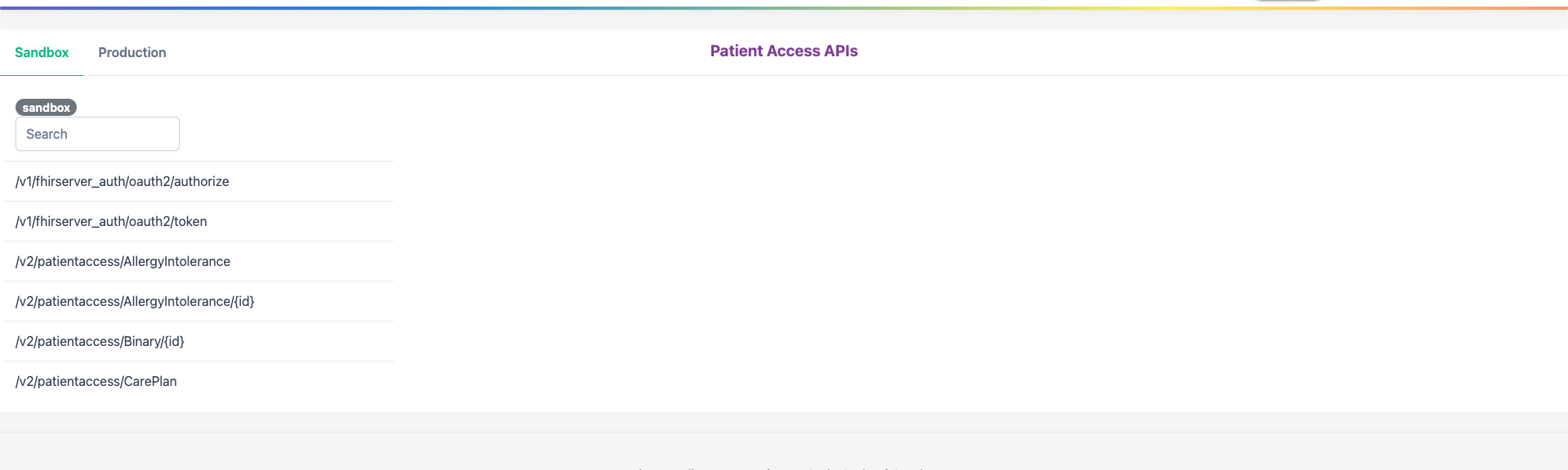
The Aetna Developer Portal’s API Library → Patient Access API lists every resource path your token can access. Useful to cross-reference if a request 404s.
Known sandbox quirks:
- Aetna login page returns
null, means your application has no active product subscriptions, or you submitted the OAuth request before the 2–5 minute subscription propagation completed. Verify subscriptions show APPROVED, wait 5 minutes, and retry. skin=skin13is required on the authorize URL, without it, Aetna’s AccountManager login UI renders blank.- Scope set, Aetna’s
.well-known/smart-configurationadvertisesopenid, fhirUser, profile, launch/patient, patient/*.read— nooffline_access. Sending a scope outside this list makes the AccountManager render literallynull. The Medblocks Platform sendslaunch/patient patient/*.read. - No refresh_token in the token response, Aetna’s Patient Access sandbox does not return a
refresh_token(there’s nooffline_accessscope to opt into). Every retrieval that hits the proactive-refresh path fails with “No refresh token available”; the worker must fetch on the initial access token before it expires or re-run the OAuth flow. - Tight rate limits, sandbox returns
429 Too Many Requests(“Assembly Rate Limit exceeded”) under burst load. The worker must honorRetry-Afterwith backoff.
Apply for Production Access
Production access requires a separate questionnaire and a separate application, even if your sandbox is already approved. The production review covers the same areas as CMS Blue Button, privacy policy, terms of service, consent UX, data retention, and member revocation.
- From the Dashboard, click My Applications → Create New.
- Select Third Party Application and Production.
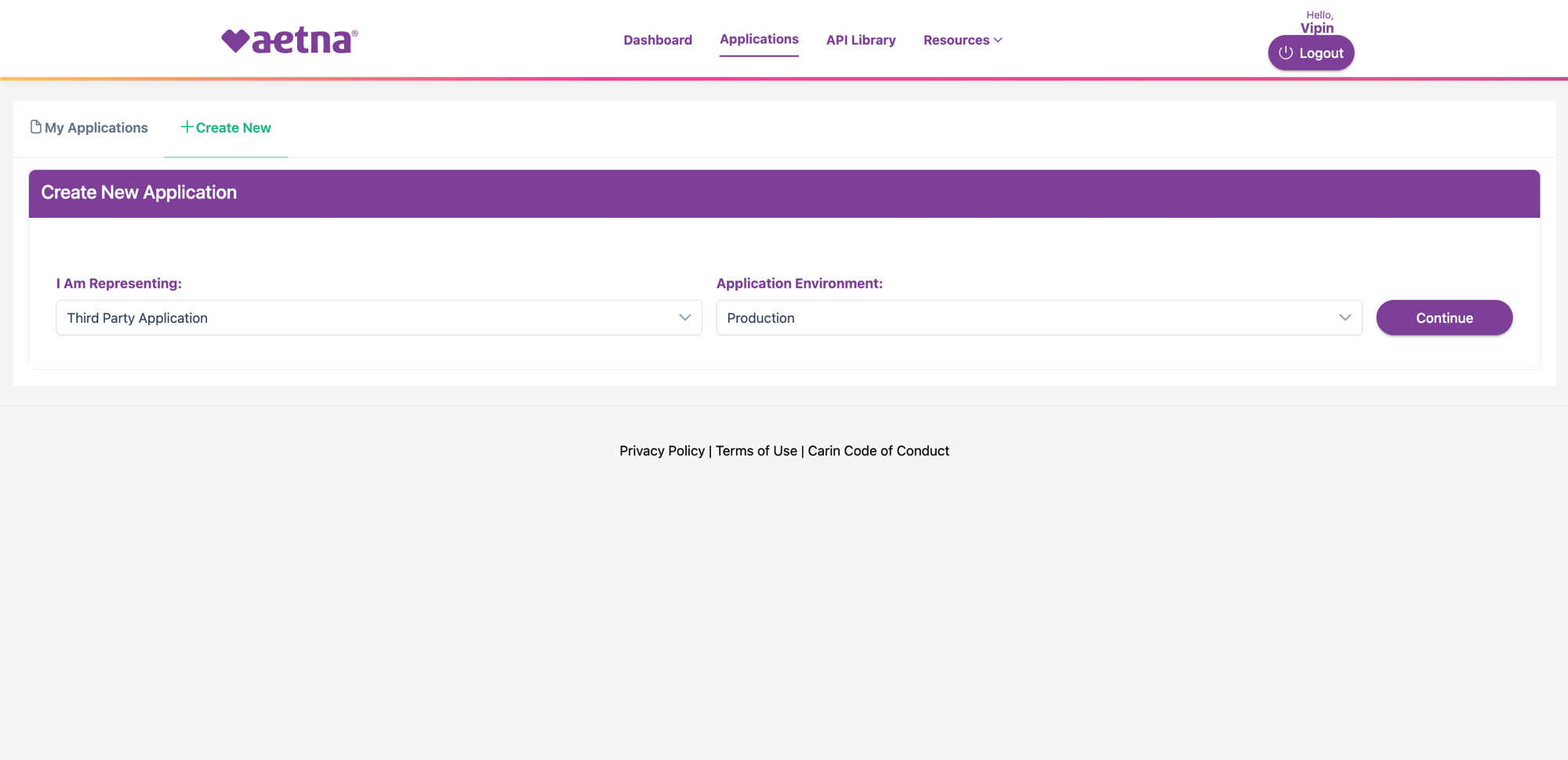
- Click Continue and complete the production questionnaire. Aetna’s Interoperability team responds within 2–4 business days. End-to-end approval typically takes longer in practice, expect follow-up questions and a possible demo before production credentials are issued. While the request is in review, the production row in My Approvals stays in PENDING status until the team approves.
Before submitting, verify:
- Sandbox integration works end-to-end, at least one successful pull covering the full Patient Access surface (see the capability statement for the exact resource list) for a synthetic member.
- Privacy policy is published at a stable URL and covers the CMS-required sections: collection, use, sharing, retention after revocation, dormant-account handling, breach notification, and data handling on company sale.
- Terms of service is published at a stable URL.
- Consent screen shows the inviting organization name and what data will be accessed.
- Member can revoke access, either an in-app disconnect button or a documented email path with a documented 30-day deletion SLA.
- Once the production questionnaire is approved, repeat Step 3 (Create Application) but with Application Environment: Production. Aetna issues a new production Client ID and Client Secret.
- Subscribe to the production patient-access products (
public-patientaccessapi-fhir,public-patientaccessapi-fhir-athrough-g, pluspublic-realtimepharmacybenefitcheckapi-fhirif applicable). Production subscriptions go through a second review, Aetna shows:
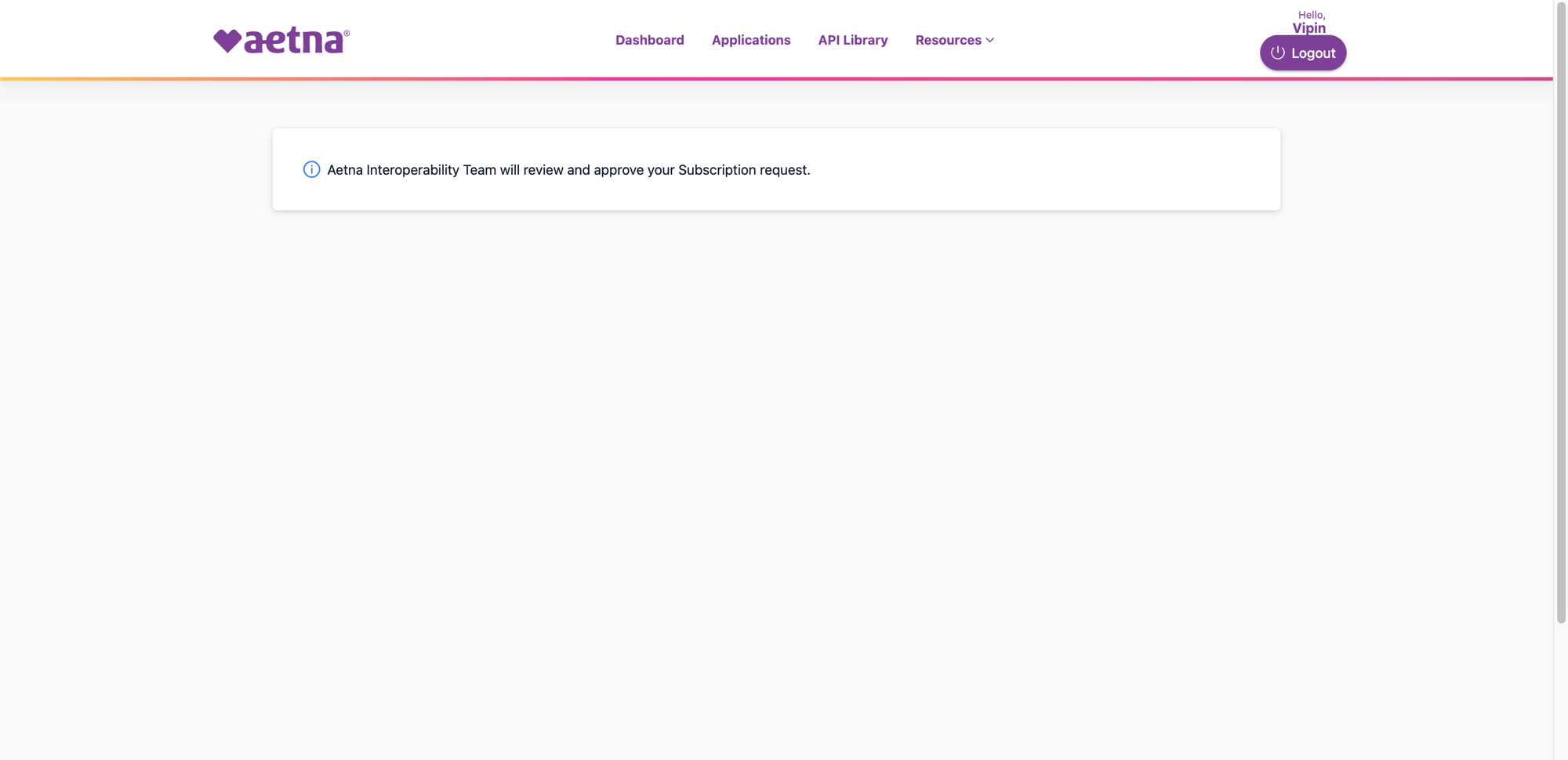
- Once subscriptions are approved, plug the production credentials into Medblocks at Settings → Connections → Aetna with Use custom credentials. The platform repoints to Aetna’s production endpoints (
https://apif1.aetna.com/fhir/...) automatically.
FHIR API Usage
Aetna’s Patient Access API is CARIN Blue Button (C4BB) aligned, same resources as CMS Blue Button, just for Aetna’s member base. No clinical resources beyond what claims naturally carry.
- Patient, member demographics.
GET /v2/patientaccess/Patient/{id} - Coverage, member’s Aetna coverage details.
GET /v2/patientaccess/Coverage?beneficiary=Patient/{id} - ExplanationOfBenefit, claims (Inpatient, Outpatient Institutional, Professional / Non-Clinician, Pharmacy).
GET /v2/patientaccess/ExplanationOfBenefit?patient={id}
All responses conform to the CARIN Blue Button Implementation Guide profiles. The exact swagger for each resource is downloadable from the Aetna Developer Portal under API Library → Patient Access API.
Request these scopes on authorize:
- launch/patient
- patient/*.read
Aetna only documents the wildcard patient/*.read, there are no per-resource scopes. openid is accepted but the token endpoint never issues an id_token, so requesting it is a no-op.
Token Lifecycle
- Access token, short-lived (typically 1 hour). Used as
Authorization: Bearer <token>on FHIR calls. - Refresh token, long-lived; refresh via
grant_type=refresh_tokenwith the same client_secret + PKCE pattern. - Member consent, Aetna doesn’t publish an explicit consent expiration like CMS BB’s 13-month window, but expect the member’s authorization to need re-confirmation at least annually.
- Revocation, Aetna does not publish a standalone revoke endpoint. Discard the tokens locally and the access tokens expire naturally; refresh tokens can be invalidated by re-running the OAuth flow.
Common Errors and Fixes
- Aetna login page shows literal
null, application has no active product subscriptions, or you tried before the 2–5 minute subscription propagation. Confirm allsandbox-patientaccessapi-fhir*products show APPROVED in your app’s Products tab and wait 5 minutes. - Login page is blank / unstyled,
skin=skin13query param missing from the authorize URL. Aetna’s AccountManager renders nothing without it. The Medblocks Platform appends it automatically. 401 invalid_clienton token exchange, Aetna’s token endpoint requires HTTP Basic auth (Authorization: Basic base64(client_id:client_secret)), not body credentials. Confirm your token request sends credentials in the Basic header.404 No resources match requested URIon Patient or Coverage, wrong base URL. Aetna’s resources live at/v2/patientaccess/{Resource}, not at the auth root. Theaudparam on the authorize URL stays at the auth root (/fhirdemofor sandbox), but resource calls go to/v2/patientaccess.429 Assembly Rate Limit exceeded, sandbox rate limits. ImplementRetry-After-aware backoff. Cap concurrency per worker.- Consent screen shows wrong app name, using a different sandbox app’s credentials. In Settings → Connections → Aetna, confirm the Client ID matches the app you registered on Aetna’s portal.
Need help?
Running into an issue? Get support from our team and we will get back to you.
How is this guide?