
UnitedHealthcare
Guide to integrate UnitedHealthcare's Patient Access API (Optum FLEX) so members can share their claims and clinical data.
UnitedHealthcare exposes the CMS-mandated Patient Access API on Optum’s FLEX platform, a member-facing SMART-on-FHIR R4 API that returns the data the payer holds: coverage, claims (Explanation of Benefit), and US Core clinical resources. UnitedHealthcare is a payer, not an EHR, so members authorize access to their plan’s data, and it plugs into the same patient-mediated connect flow as your EHR integrations.
This is a step-by-step guide to registering an app on the Optum FLEX portal and wiring it up with Medblocks.
UnitedHealthcare uses a confidential client with a client secret, not the asymmetric JWKS/private-key flow used by Epic and Cerner. There’s no key pair to generate; Optum issues you a client_id and client_secret.
Setup Guide
Create a OneHealthcare ID and register your organization
- Create a OneHealthcare ID at identity.onehealthcareid.com. This is the shared identity used across all Optum/UHC platforms.
- Go to the Optum FLEX vendor portal at flex.optum.com/portal and register your organization under the App Owner section. Submit your org attestation and compliance documents and await email approval. Support:
flexvendorsupport@optum.com.
Register your application
Once your organization is approved, open Register New App in the left navigation and fill in the App Details form:
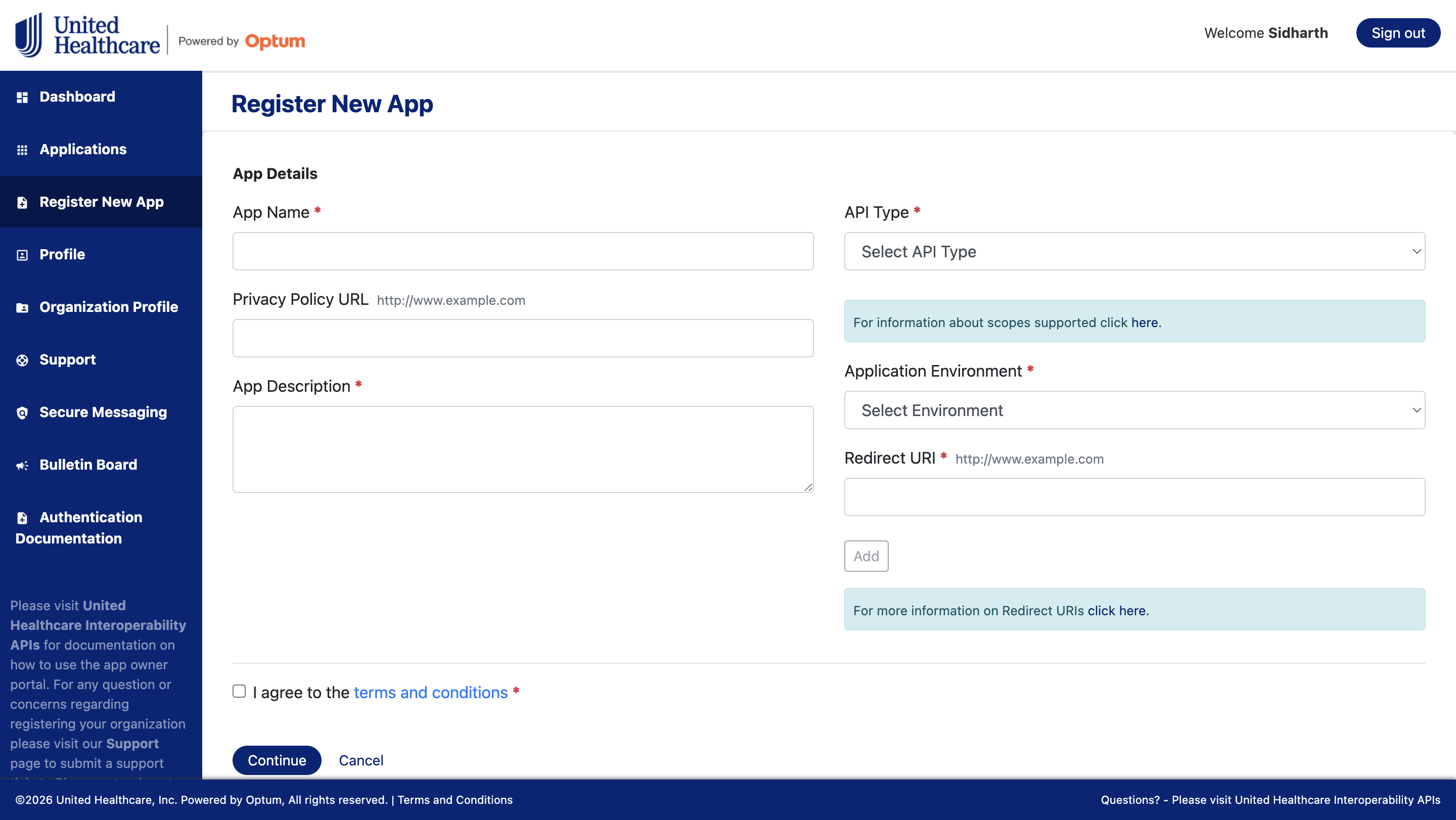
- App Name and App Description: how your app appears to members on the consent screen.
- Privacy Policy URL: required; link to your published privacy policy.
- API Type: select Patient Access. The “click here” link beside it opens the supported-scopes reference.
- Application Environment: choose Sandbox first. You’ll register a separate Production app later (Step 5).
- Redirect URI: enter your callback URL and click Add (see below).
- Tick I agree to the terms and conditions, then click Continue.
Select Patient Access as the API Type, not Patient Access CMS 2025. The CMS 2025 API type has a known issue on Optum’s end as of June 2026; use the standard Patient Access type until it’s resolved.
When the app is created, Optum issues a client_id and client_secret. Store the secret in a secrets manager or environment variable, never in source control.
Sandbox apps are approved immediately. A Production app goes through Optum’s security & compliance review before approval (Step 5).
Redirect URI
If you’re using the Medblocks platform, register:
- Sandbox / local:
http://localhost:3000/api/auth/smart/callback - Production:
https://app.medblocks.com/api/auth/smart/callback
Production requires an https:// redirect URI; localhost is only accepted in sandbox. Register the exact callback URL of the environment you’re deploying.
Application registration & support contact
Next, Optum collects support and stakeholder details that may be shared with members:
- Phone: your support number, digits only (no
+,(or)), e.g.123country code and1234567890. - Email: a support inbox, e.g.
support@yourcompany.com. - Website: your company site, e.g.
https://yourcompany.com. - Support contact name: the person Optum contacts about the app.
- Do you have an ID for your application for this platform? Select No on first registration.
- Name of your company: e.g.
Your Company, Inc. - For which platform application is registered? Select Website/IP.
- Name of application for this platform: e.g.
Your App. - Development and Stakeholders: up to 10 people (name + email) to receive downtime and release notifications from the FLEX Admin Team.
The Phone field rejects special characters; enter digits only (no +, spaces, or parentheses).
Scopes
Scopes are assigned automatically based on the API Type. A Patient Access app is granted these ten patient/* read scopes:
patient/Patient.read
patient/Coverage.read
patient/ExplanationOfBenefit.read
patient/Condition.read
patient/Encounter.read
patient/Procedure.read
patient/MedicationRequest.read
patient/MedicationDispense.read
patient/Observation.read
patient/Immunization.read
Test in the Sandbox
- Configure your sandbox
client_id/client_secretin Medblocks (Settings → EHR Clients) for theuhcprovider, or set them as the Medblocks-managed sandbox credentials. - Start a patient connect flow and search
unitedhealthcare. - At the OneHealthcare ID login, authenticate. Any OneHealthcare ID works for the sandbox (all map to the same synthetic member). Create one via the sign-up link if needed.
- Approve the consent screen. The member’s clinical data syncs into Medblocks.
The sandbox synthetic member is clinical-only, so Coverage and ExplanationOfBenefit may return no data there. Real production members return their claims and coverage.
Promote to Production
Register a Production application (set Application Environment to Production). Production adds an extended questionnaire that Optum’s security and compliance team reviews before approval.
Application Authentication
Set Identity Verification Method to HSID (Standard Login).

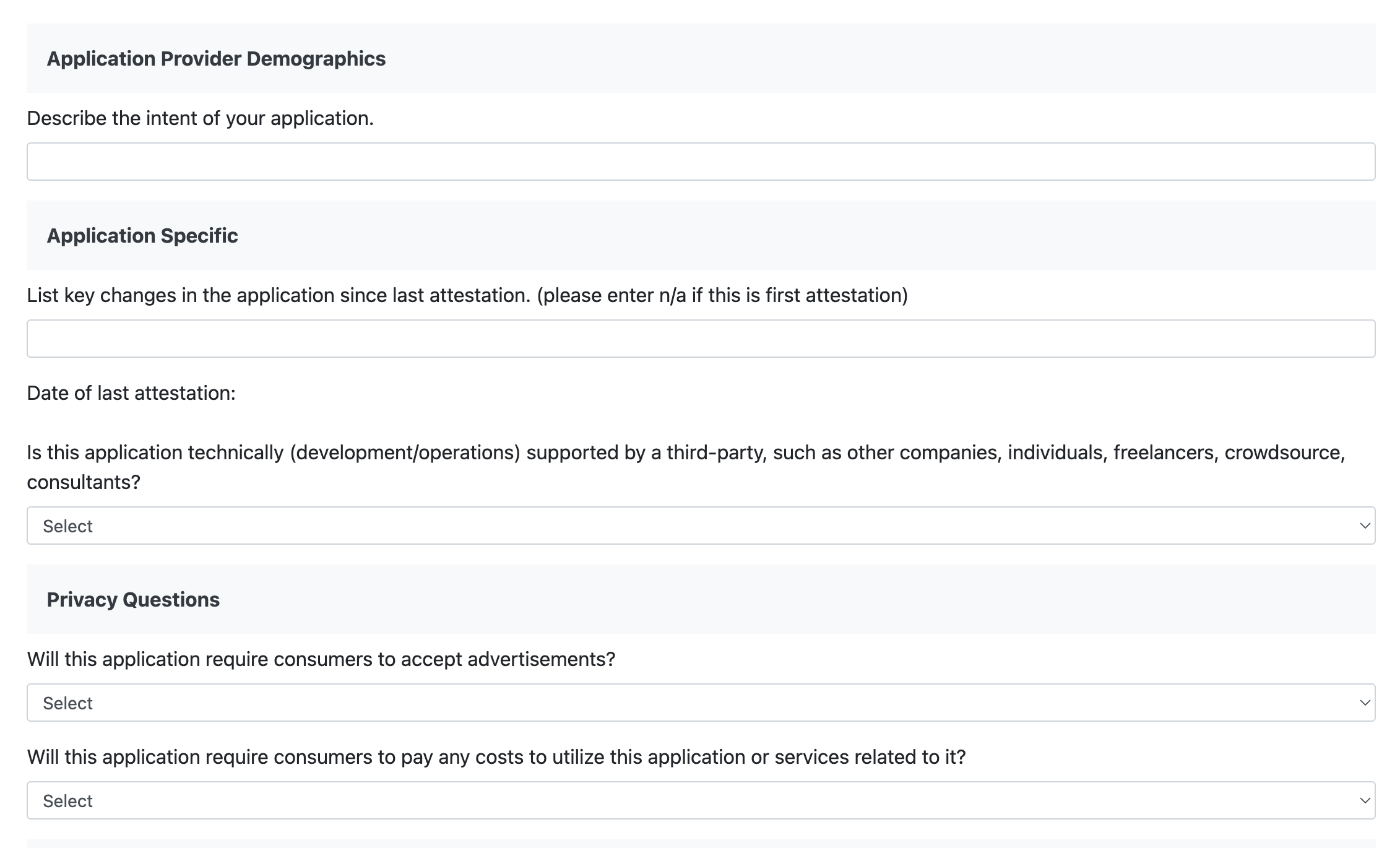
Application Provider Demographics, Application Specific, and Privacy Questions
- Describe the intent of your application. e.g. “Lets members securely authorize sharing their UnitedHealthcare coverage, claims, and clinical data with their healthcare organization via SMART-on-FHIR.”
- List key changes since last attestation. Enter
n/afor a first attestation. Date of last attestation: leave blank (orn/a) on first submission. - Is the application supported by a third party (other companies, individuals, freelancers, crowdsource, consultants)?
Noif you build and operate it in-house; answerYesand name them if a vendor runs it for you. - Will the application require consumers to accept advertisements?
No. - Will consumers pay any cost to use the application?
No.
Technology Questions
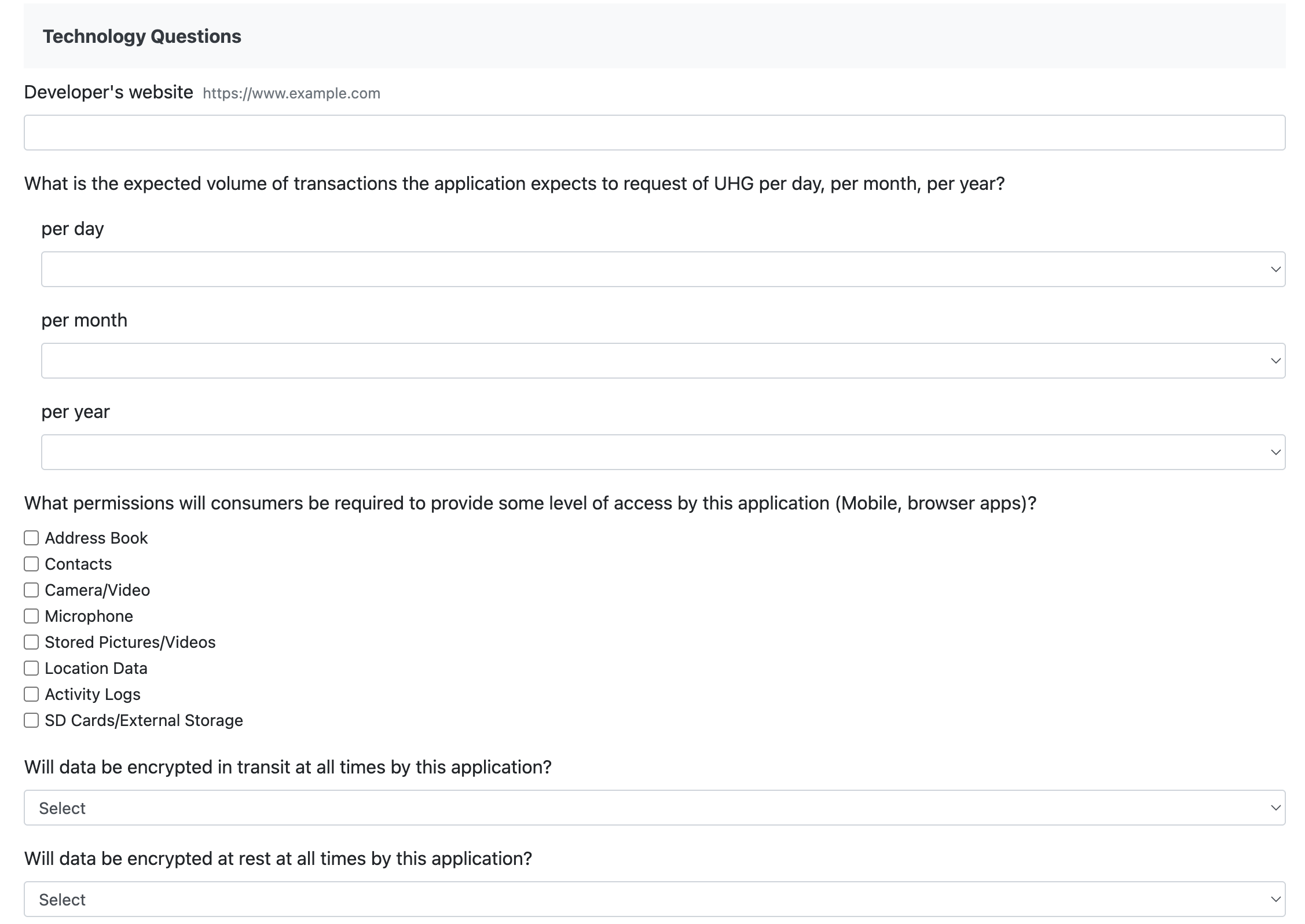
- Developer’s website: your company site, e.g.
https://yourcompany.com. - Expected transaction volume against UHG (per day, per month, per year): your best estimate from your member base, e.g.
100/3,000/36,000. - Device permissions the app requests: leave all unchecked for a web/browser SMART app (Address Book, Contacts, Camera/Video, Microphone, Stored Pictures/Videos, Location Data, Activity Logs, and SD Cards/External Storage are not used).
- Will data be encrypted in transit?
Yes. At rest?Yes.
- Do you have a policy to relinquish and fully delete data at the user’s request?
Yes. - Is the application registered/listed with CARIN? Answer per your status (
Yesonce you’ve completed CARIN listing, otherwiseNo). - Primary storage mechanism of user and application data: an encrypted database (e.g. PostgreSQL) in a HIPAA-compliant cloud environment.
- How long do you intend to store an individual’s data? Per your retention policy, e.g. until the member disconnects or requests deletion.
- Expected API call schedule: on demand at member connect, plus periodic background refresh.
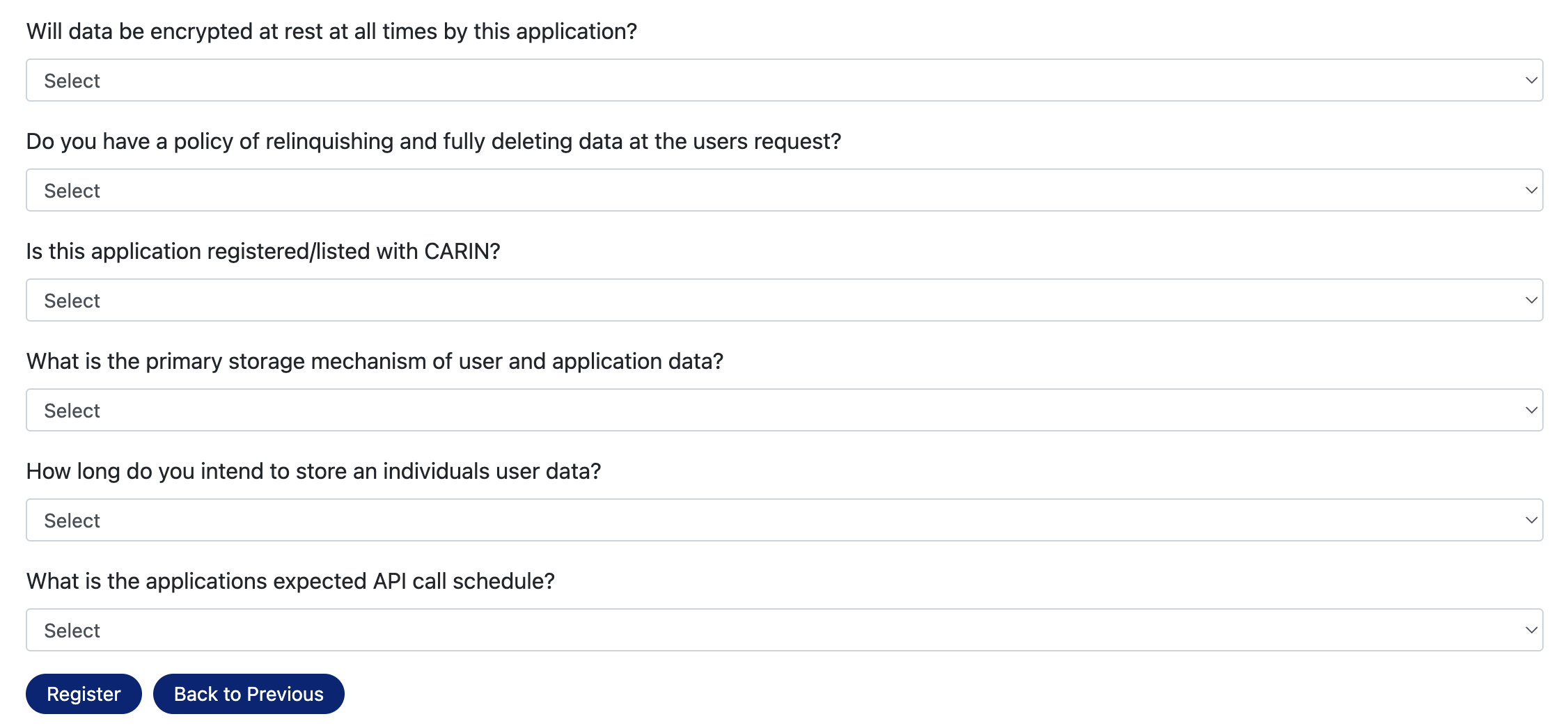
Click Register. Once approved, you receive a production client_id and client_secret.
UnitedHealthcare production covers four payers, each a separate choice your members can connect:
- UnitedHealthcare
- Rocky Mountain Health Plans
- Sierra Health and Life
- Peoples Health
The member authenticates with their plan’s identity provider and picks their payer during login; your one approved production app serves all four.
Configure in Medblocks
Add your UnitedHealthcare client_id and client_secret in Medblocks (Settings → EHR Clients), or use Medblocks-managed credentials. Members in your organization can then search UnitedHealthcare and connect their plan data (coverage, claims, and clinical records) through the standard SMART-on-FHIR flow.
Need a hand wiring up UnitedHealthcare? Reach out and we’ll walk you through it.
Need help?
Running into an issue? Get support from our team and we will get back to you.
How is this guide?