
Find connections
Search the Medblocks catalog to find the hospital or payer a patient should connect to.
Open in
Show prompt text
You are an AI coding agent helping integrate Medblocks Patient Access into the codebase that is currently open. Treat the live Medblocks docs and generated API reference as the source of truth. If you are running inside a local repo that contains openapi/medblocks.json, read it too. Do not rely on endpoint names, SDK calls, response fields, or code snippets from memory.

Before changing code, read the current docs directly.

- Patient Access overview https://medblocks.com/docs/patient-access/overview
- Find connections https://medblocks.com/docs/patient-access/find-connections
- Create patients https://medblocks.com/docs/patient-access/create-patients
- Create a patient session https://medblocks.com/docs/patient-access/create-patient-session
- Medblocks-hosted page https://medblocks.com/docs/patient-access/create-patient-session/medblocks-hosted-page
- Your own UI https://medblocks.com/docs/patient-access/create-patient-session/your-own-ui
- Handle the return https://medblocks.com/docs/patient-access/handle-the-return
- After connection https://medblocks.com/docs/patient-access/after-connection
- Get the data https://medblocks.com/docs/patient-access/get-the-data
- API conventions https://medblocks.com/docs/reference/conventions
- API reference https://medblocks.com/docs/reference/api

Use the page I copied this from as the immediate task context, then use the rest of the Build pages to understand the full flow.

Work in this order.

1. Inspect this codebase first. Identify the app framework, server boundary, environment variable pattern, existing API client pattern, current patient or user identity model, logging style, and test runner.
2. Read the generated API reference before naming any route, field, enum, header, error code, or SDK method. If your tool has local filesystem access and this repo has openapi/medblocks.json, read that too. If the docs and reference disagree, stop and ask the user which source to follow.
3. Decide whether this app should use the Medblocks-hosted page, your own UI, or both. Ask the user if the answer is not obvious from the product.
4. Keep the Medblocks API key server-side. Never expose it through public environment variable prefixes, frontend bundles, browser logs, or client-side fetches.
5. Implement the smallest complete path for the selected page. Follow existing project conventions for file locations, naming, validation, errors, loading states, and tests.
6. After a patient returns from authorization, verify the result from the server using the latest documented Patient Access status flow. Do not trust query string values as the final source of truth.
7. Preserve Medblocks request IDs and documented error details in logs and server responses where safe. Avoid logging PHI unless this codebase already has an approved pattern.
8. Run the relevant type checks and tests before reporting done. If a live smoke test needs credentials the repo does not have, explain the exact manual smoke test steps.

If any required detail is missing, ask concise questions before writing code. In a healthcare integration, a correct pause is better than an incorrect assumption.
This is the first build step. Before a patient can connect their records, you need the connection they belong to. A connection is a catalog entry for one hospital, clinic, or payer (a health insurer). Medblocks keeps a catalog of these, and you search it to find the one the patient uses.
If you choose the Medblocks-hosted page, Medblocks renders this search for the patient. Use this page when you want to integrate the search functionality with your own UI.
Search the catalog
Search with mb.connections.list, passing the patient’s text as q. This is what powers the search box in your own UI, where the patient types their hospital’s name and picks it from the results. Your browser code never touches the Medblocks API directly, since your API key is a secret that lives only on your server. The browser calls a route on your server, and your server runs the search and returns the results.
import { mb } from "../medblocks";

export async function searchConnections(query: string) {
  if (query.trim().length < 2) return { data: [] };

  const page = await mb.connections.list({ q: query, limit: 20 });

  return {
    data: page.data.map((connection) => ({
      id: connection.id,
      name: connection.name,
      type: connection.type,
      logo_url: connection.logo_url,
    })),
  };
}qstringSearch text for the connection catalog.
typestringFilter by vendor type (epic, cerner, etc.).
limitintegerMaximum number of items to return.
starting_afterstringPagination cursor from next_cursor.
AuthorizationBearer <token>requiredMedblocks API key for server-side requests.
VersionstringDate-pinned API version. If omitted, Medblocks uses the version pinned on your API key.
async function searchConnections(query: string) {
  if (query.trim().length < 2) return [];

  const response = await fetch(`/api/connections?q=${encodeURIComponent(query)}`);
  const { data } = await response.json();
  return data as Array<{ id: string; name: string; type: string | null }>;
}qstringSearch text for the connection catalog.
typestringFilter by vendor type (epic, cerner, etc.).
limitintegerMaximum number of items to return.
starting_afterstringPagination cursor from next_cursor.
q is a case-insensitive match on the connection’s name, and type narrows the results to one vendor, such as epic or cerner.
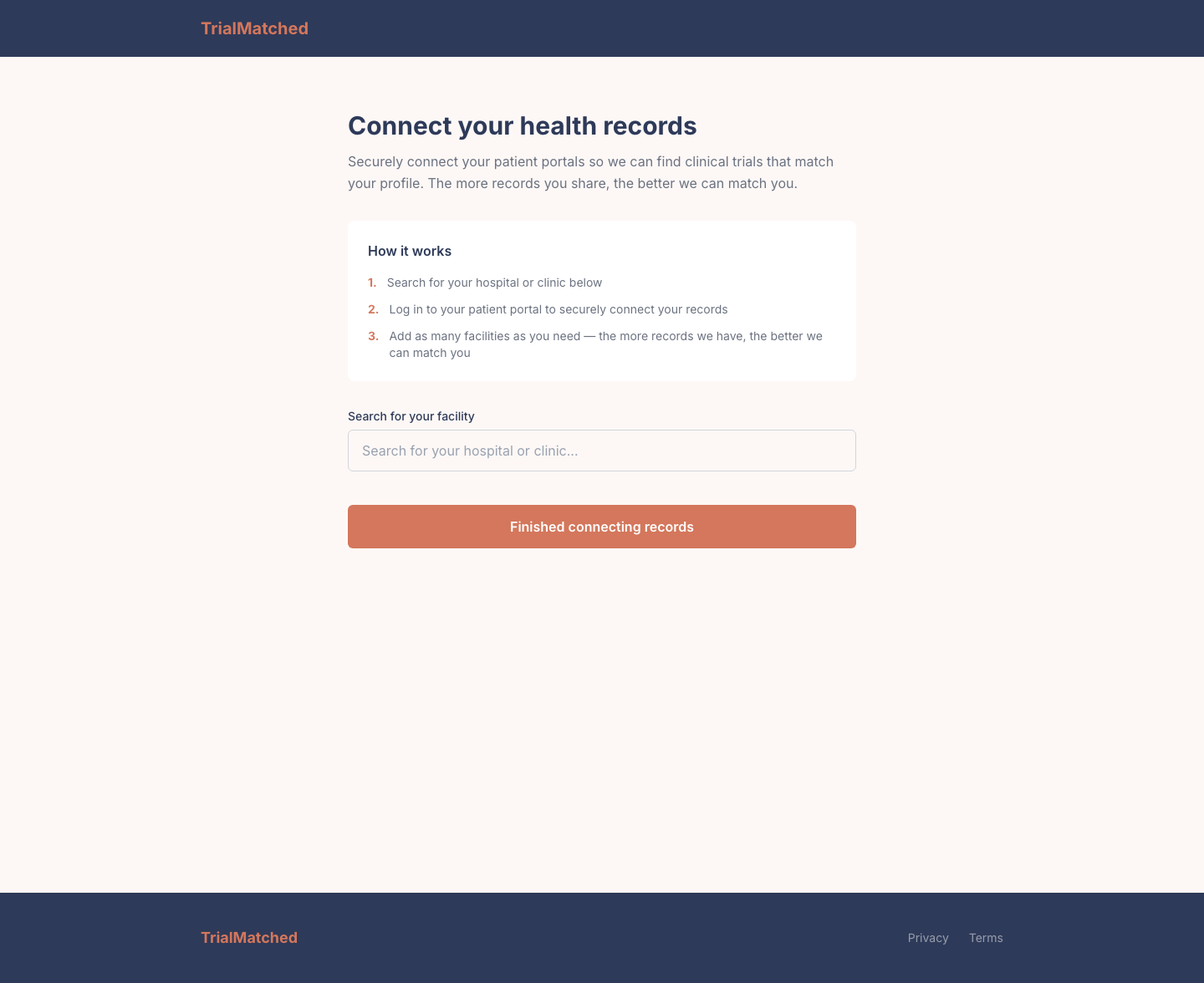
The screenshot below is an example from TrialMatched, a clinical trial matching app. TrialMatched asks patients to connect records from their hospitals so it can match them to relevant trials. In an app like that, this search box is where the patient finds the hospital or clinic they want to connect.
What a connection looks like
The API returns a page of connection results. A single result looks like this.
{
  "id": "fhirsrc_01J9YR9N3X4VZ6P2K5RH7M3LMP",
  "name": "Epic MyChart",
  "type": "epic",
  "fhir_base_url": "https://fhir.epic.com/interconnect-fhir-oauth/api/FHIR/R4",
  "logo_url": "https://cdn.medblocks.com/logos/epic.png",
  "portal_url": "https://www.mychart.com"
}
These are the fields you will usually render or store.
| Field | Description |
|---|---|
id | The connection ID, like fhirsrc_01J9YR9N3X4VZ6P2K5RH7M3LMP. This is what you pass into a patient session. |
name | The display name, such as Epic MyChart. |
type | The vendor, such as epic or cerner, or null when unknown. Both EHRs and payers appear in the catalog. |
fhir_base_url | The connection’s FHIR data endpoint. It also works as an alternate id wherever id is accepted. |
logo_url | A logo for your UI, or null when one hasn’t been curated. |
portal_url | The patient-facing portal link, useful for help text, or null. |
You only need id and name to build a working search experience. The rest is there to make it look right.
List or retrieve connections
Drop the q to walk the whole catalog, handy for caching it on your server. Call autoPagingIterator() and the SDK follows the pagination cursor for you, one page at a time.
for await (const connection of mb.connections.list({ limit: 100 }).autoPagingIterator()) {
  console.log(connection.id, connection.name);
}
Already know which connection you want? Pass mb.connections.retrieve either the connection ID or the fhir_base_url, since both resolve to the same entry. An ID that matches nothing throws a not_found_error.
const connection = await mb.connections.retrieve("fhirsrc_01J9YR9N3X4VZ6P2K5RH7M3LMP");Next
Once the patient picks a connection, pass its id into a patient session. The patient goes to that facility’s patient portal to sign in and approve access. Your own UI shows how to wire the chosen connection into the session.
If you’d rather not run the search at all, a Medblocks-hosted page does it for you. The patient searches the catalog on the page you send them to.
Common errors
| Code | Meaning |
|---|---|
resource_not_found | The id or fhir_base_url you retrieved does not match any connection in the catalog. |
bad_request | A query parameter is malformed, such as a limit outside the allowed range. |
missing_api_key | The Authorization header is missing from your server’s request. |
invalid_api_key | The key is invalid or does not belong to your organization. |
Read the full envelope and code list in Errors.
See also
Need help?
Running into an issue? Get support from our team and we will get back to you.
How is this guide?