Taking an Epic Patient App Live: Production, Cost and Alternatives
In this lesson, we’ll mark Care Summary ready for production.
For decision makers: if you skipped the last two lessons, this is the one to read. It covers what going live involves, how long it takes, and what it costs.
Every hospital has its own FHIR base URL
As we covered in Module 1, Epic is federated. Every hospital runs its own instance of Epic, with its own FHIR base URL. The fhir.epic.com URL we’ve used so far only works for the sandbox.
To find the real URLs, Epic publishes an endpoint directory that maps each health system to its FHIR base URL. This is what enables the “pick your hospital” step from Lesson 1.
The directory comes in two forms:
- A JSON bundle you can download. It’s large, and it’s built to be processed by code. Epic updates it roughly every two weeks, so you can pull it into a pipeline and refresh it regularly.
- A list on the website. If you only care about one or two hospitals, you can look them up there.
Use the production client ID
Once you have the endpoint, your app needs to start the OAuth flow, and for that it needs a client ID.
In the sandbox, we used the non-production client ID with the sandbox endpoint. In production, you use the production client ID.
But first, the hospital has to recognize that client ID. Each hospital is its own Epic instance, so your production client ID has to reach every one of them. Epic has a mechanism that distributes your client ID to all hospitals automatically.
Build your first real FHIR app in 15 days
500+ builders have done it. Live kick-off, structured modules, Demo Day. $27.
Join the challengeCheck that your app is eligible for automatic distribution
There’s a big caveat: Epic only distributes your client ID automatically if your app meets certain requirements. The app has to be:
- patient-facing
- read-only
- using only the USCDI FHIR APIs
If your app meets all of these, you are eligible to apply for automatic distribution.
If not, then something is wrong, usually in your scopes. You may be requesting data your app doesn’t need. Go back to the scope selection from Lesson 2 and trim it to the automatic distribution list.

Check your redirect URIs
Before you mark the app ready for production, check your redirect URIs. Make sure your production app’s redirect URI is on the list.
You can have as many as you want, and you can leave your localhost one on there too. But once you mark the app ready for production, you can’t come back and change this list. Make sure everything is right before you click the button.
Mark ready for production
When everything checks out, click Mark Ready for Production.
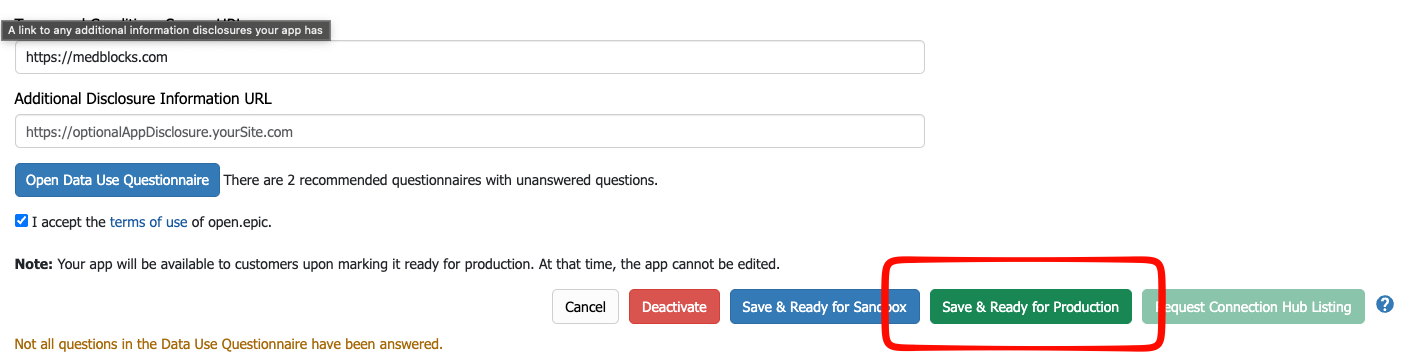
That’s it. Epic starts distributing your app to all of its FHIR-enabled hospitals, which is almost all of them. The process can take close to 24 hours.
Distribution reaches every Epic hospital that has signed the open.epic API Subscription Agreement. Most have, unless they’re in the middle of changing their infrastructure or moving from one EHR to another.
Activate the app at each organization
Once distribution finishes, there’s one more step. You have to review and activate the app for each Epic organization, first for non-production and then for production.
That’s 500+ organizations. In the Review & Manage Downloads section, and each needs two clicks: activate for non-production, then activate for production. Doing that by hand, every time you create an app, takes a long time.
So we wrote a script that automates it. Copy it, open your browser console on that page, and paste it in. If it’s your first time pasting into the console, your browser will ask you to allow pasting first.
The script takes a few minutes to run. It goes through every organization on the page and activates each one for non-production and then for production.
Test a real connection
Now you’re ready to test a connection in production.
When a patient comes to your app, they first need to pick which hospital to authenticate with. In the sandbox there was only one option, so we gave them a button. In production, you need a dropdown or a search box where they can find their hospital.
Use the JSON bundle from the endpoint directory to populate that list. It takes some cleaning up, but it’s simple if you’re only doing it for Epic. At Medblocks, we’ve done this enough times that we maintain our own catalog with a cleaned version of this data set and hospital logos.
When the patient picks a hospital, you start the OAuth request against that hospital’s FHIR base URL, with your production client ID.
The patient then sees that hospital’s login page. This is how you know it worked: a MyChart login page with that hospital’s logo on it. It’s still Epic MyChart, but for that particular hospital.
The patient signs in, consents to your app, and comes back to your app. You now have a real access token you can use to get real data from a real Epic instance.
What this costs
In Module 1 we went through the cost. For a patient app using the standard FHIR APIs, Epic charges nothing:
- no per-API-call fee
- no membership required
You can list your app on Connection Hub for $500 a year if you want. But that listing is mainly so hospitals can find you. Patients aren’t usually searching Epic’s directory for apps. You don’t need it to operate.
So if you’re only reading USCDI data and not writing anything back, you can go live in a day or two. We’ve seen people go live in 48 hours. Everything else is free, and with AI coding tools, people are building these apps in a few days and getting real data.
It also means patients can now get their own data in a computable format: FHIR.
When USCDI isn’t enough
Request more scopes, hospital by hospital
If you need scopes beyond the automatic distribution list, your client ID won’t be distributed automatically. You have to contact each hospital and ask them to load your client ID manually.
That means building a relationship with the hospital. Some hospitals are proactive and respond to these requests, but it helps a lot if you know someone there.
EHI export
Patients have another option. Inside MyChart, there’s an option to request a full EHI (electronic health information) export. What’s available depends on the hospital.
An EHI export is a “give me everything you have on me” request. It’s a full data dump of every table Epic has on the patient, and Epic publishes documentation for all of these tables. It takes a few days for the patient to receive it, and it arrives as a large zip file of tabular data files.
A patient could request an export and upload it to your app, and technically you’d get more data than through the login flow. But it adds a lot of friction, and we don’t recommend asking patients to do it. Some hospitals call the patient to ask why they want an EHI export. Some refuse outright.
So start with what you can do using USCDI data. If you outgrow it, a better path is usually to add scopes and approach the hospitals where most of your patients are, or to build a relationship with those hospitals directly.
TEFCA Individual Access Services
What if you want the data without the patient logging in to each portal? Many patients have records at several hospitals.
There’s a way to pull all of it together: TEFCA Individual Access Services (IAS). It’s new and still being adopted. The patient verifies their identity once, for example with a selfie or an ID card. Using that, your app can discover the hospitals where they’ve received care and pull their records automatically.
The patient doesn’t need to remember their login for each portal. They see the organizations where they’ve received care, and they click Connect on each one.
There’s a catch with Epic. TEFCA IAS handles identity, but it has no way for the patient to say which parts of their data they consent to share. So Epic asks for consent after every connection. The patient still goes through a consent page per hospital, which is a form of “portalitis”, the patient bouncing between portals.
Most patients are fine with it, though. Selecting the hospitals they want to connect isn’t a bad experience.
We won’t go further into TEFCA here, since this is an Epic integration course. It’s another way into Epic data without the patient logging in to each portal.
What we covered in this module
We’ve gone through the patient access pattern from start to finish. You registered an app, saw it working in the sandbox, learned how the OAuth flow works, read a patient chart, activated your app for production, and saw what the production flow looks like.
If this module was useful, or if you hit something we didn’t cover, let us know in the comments.