
Use Medblocks without code
Use the dashboard as a complete control plane for setup, monitoring, exports, and support.
Medblocks is not only an API. The dashboard is a platform surface for teams that want to configure integrations, monitor activity, deliver records, and support users without building every workflow into their own app.
Use this path when an operations, implementation, support, or data team needs to run Medblocks directly from the dashboard.
Create the workspace
Create a Sandbox workspace for development or a Production workspace for live work. The workspace controls API keys, connection credentials, patients, exports, webhooks, and monitoring.
Add or import patients
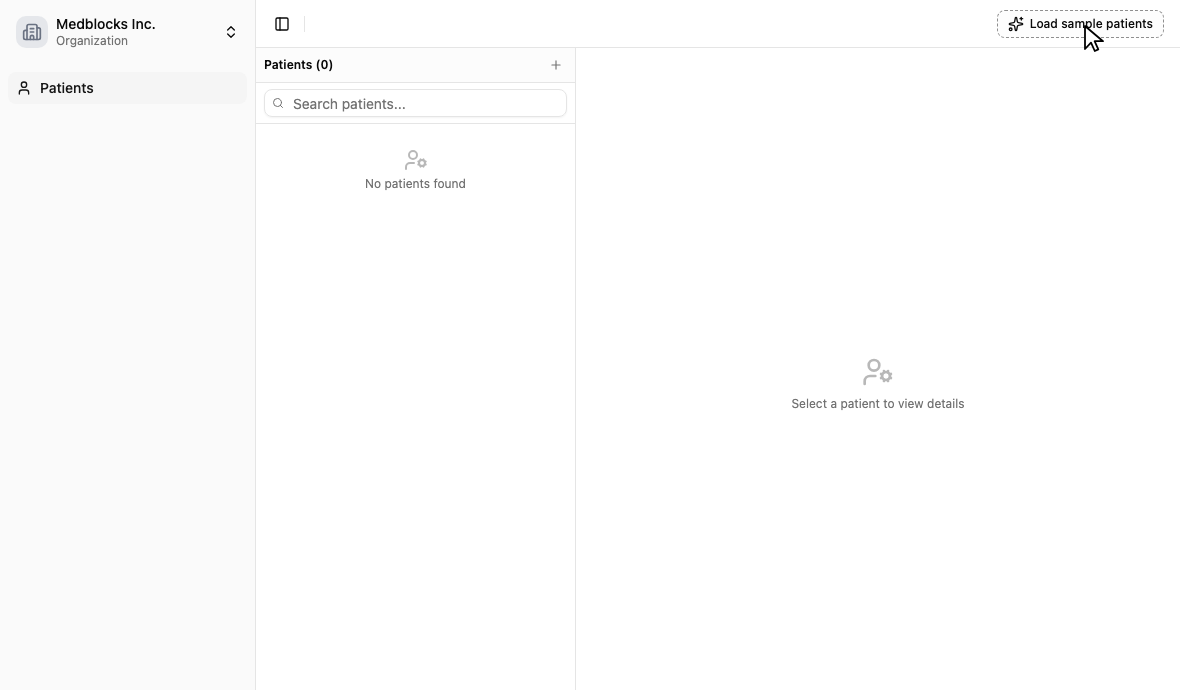
Use the Patients page to inspect records, connection history, pull status, and support context. In a Sandbox workspace, use Load sample patients to populate synthetic patients without PHI.
Configure connections
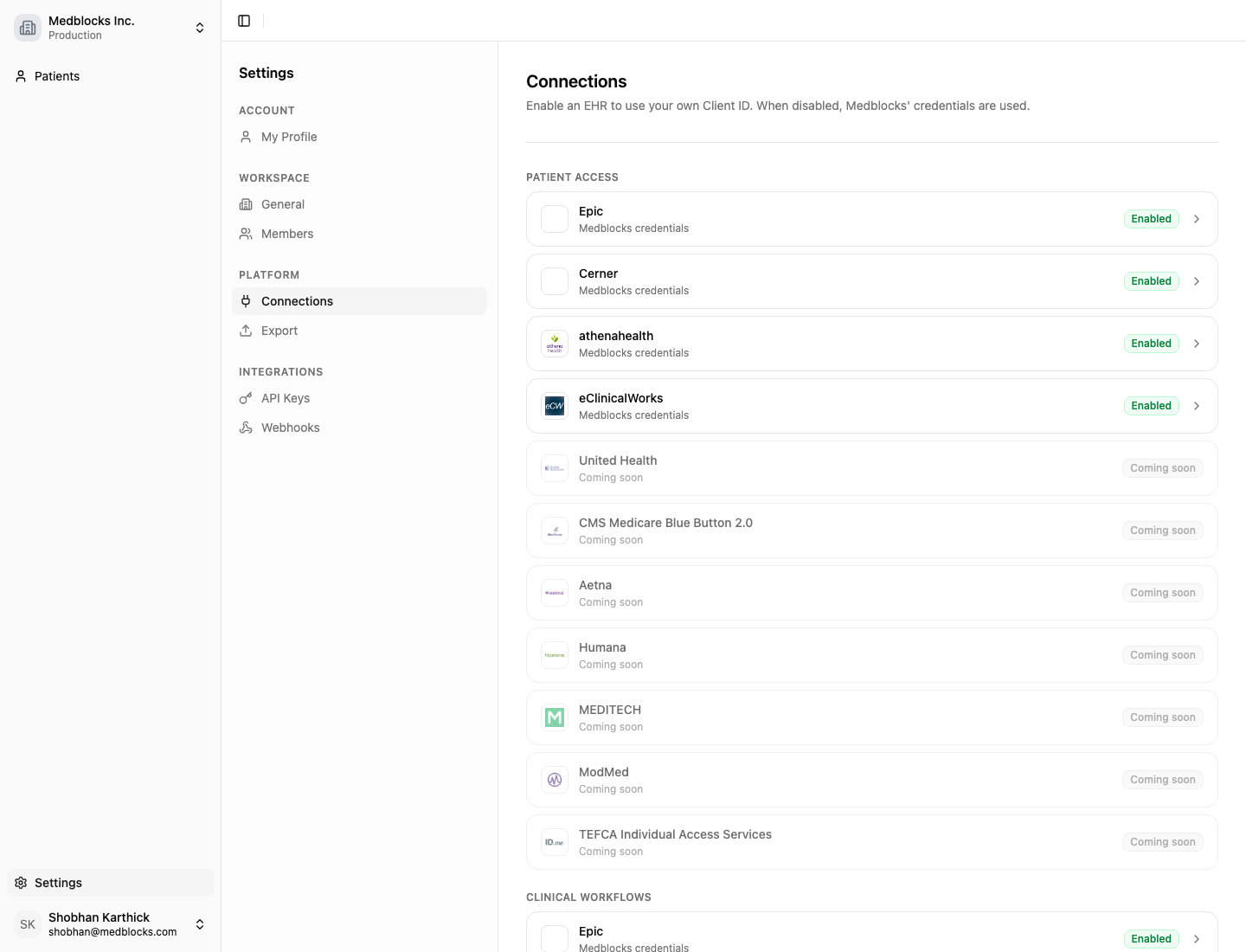
Use Configure connections to add credentials for patient access, clinical workflows, backend sync, or network access.
This is where your team brings its own client IDs, app registrations, and backend credentials instead of waiting for product code to exist.
Send data out
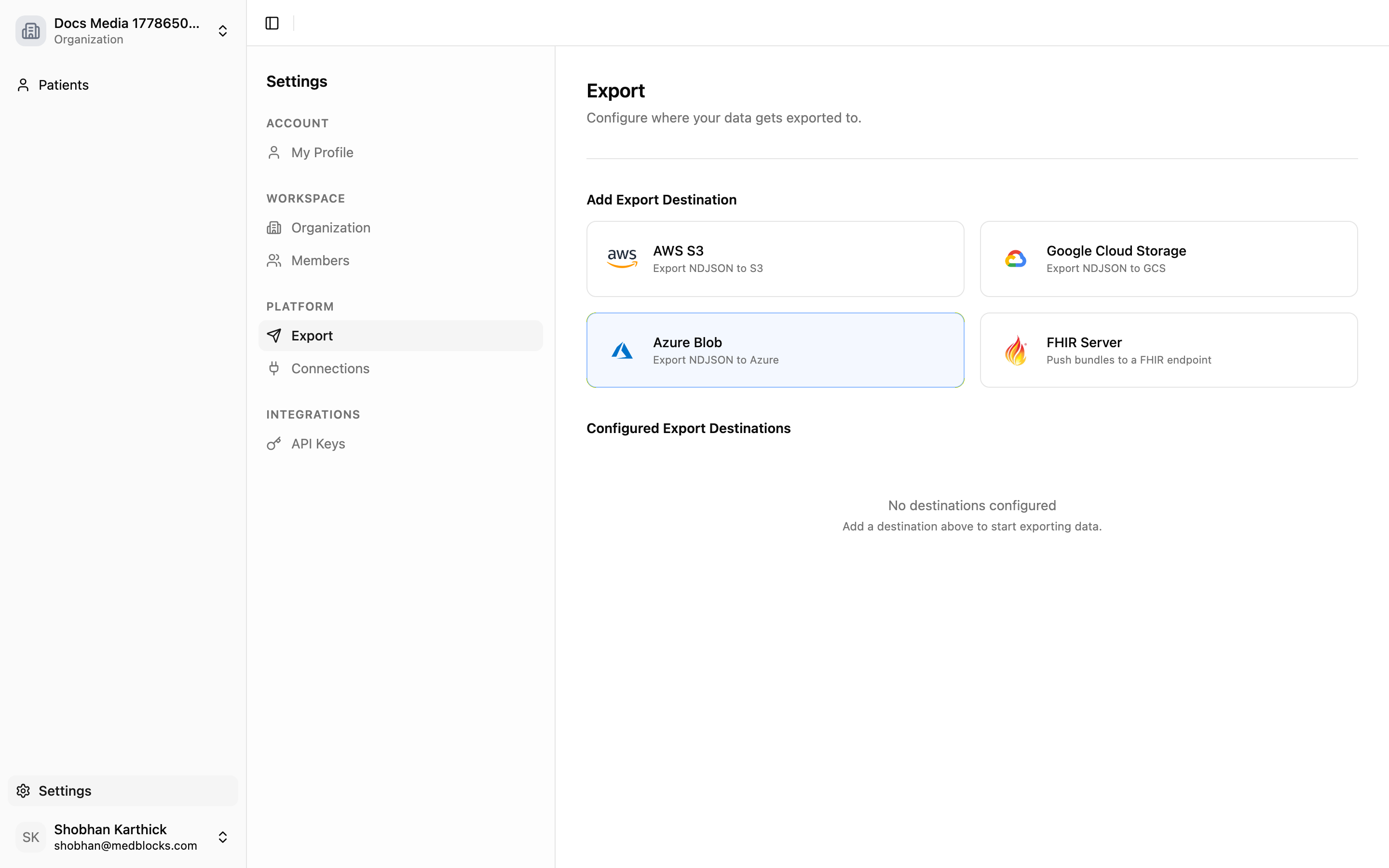
Use Settings > Export to configure a FHIR server or object storage destination. Medblocks can run the first backfill and continue sending deltas after future pulls.
Monitor and support the workflow
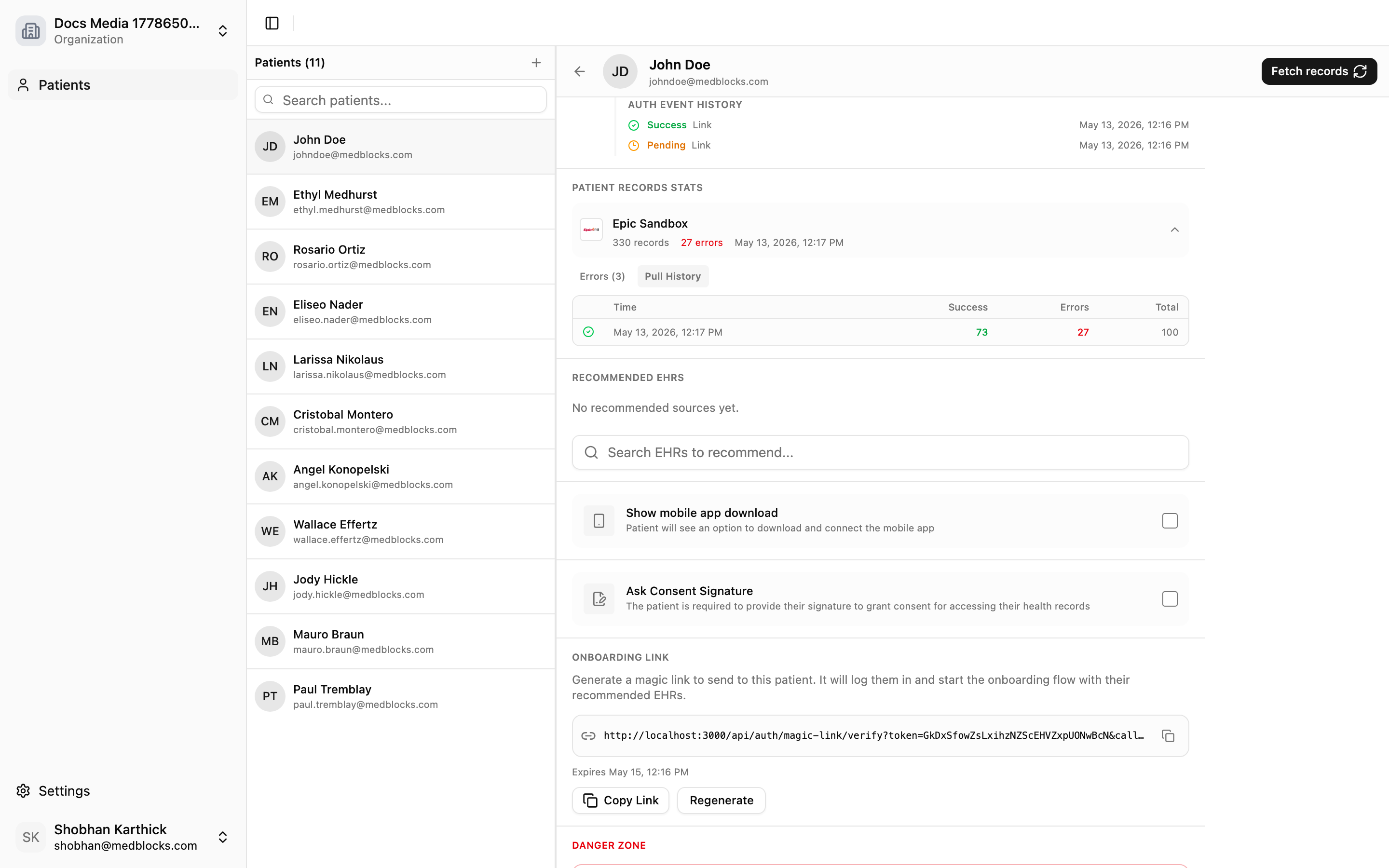
Use dashboard history to answer operational questions:
- Did authorization succeed?
- Did records finish pulling?
- Did an export run fail?
- Which webhook deliveries retried?
- Does the patient need to reconnect?
When to add code
Add code when your product needs to trigger Medblocks from its own user experience: a patient-facing button, an embedded clinician workflow, a backend job, or custom business logic after a webhook.
The dashboard remains useful after you add code. It is where your team monitors the integration, configures destinations, handles support, and checks failed work.
See also
Need help?
Running into an issue? Get support from our team and we will get back to you.
How is this guide?