Introducing Template API
In this lesson, we’ll get started with the openEHR Template API. The Template API is what you use to upload and manage openEHR templates on an openEHR server. We’ll use the local EHRbase server we set up in the previous lesson to perform these operations.
This lesson will be split into two steps:
- Set up Postman.
- Upload the Template.
So let’s get started.

Build your first real FHIR app in 15 days
500+ builders have done it. Live kick-off, structured modules, Demo Day. $27.
Join the challenge1. Set up Postman
In this section, we will set up Postman to interact with the openEHR server. In case you are not familiar with Postman, it is a tool that lets you send API requests without writing any code.
Postman works in the browser too, but we recommend downloading the desktop app for a better experience.
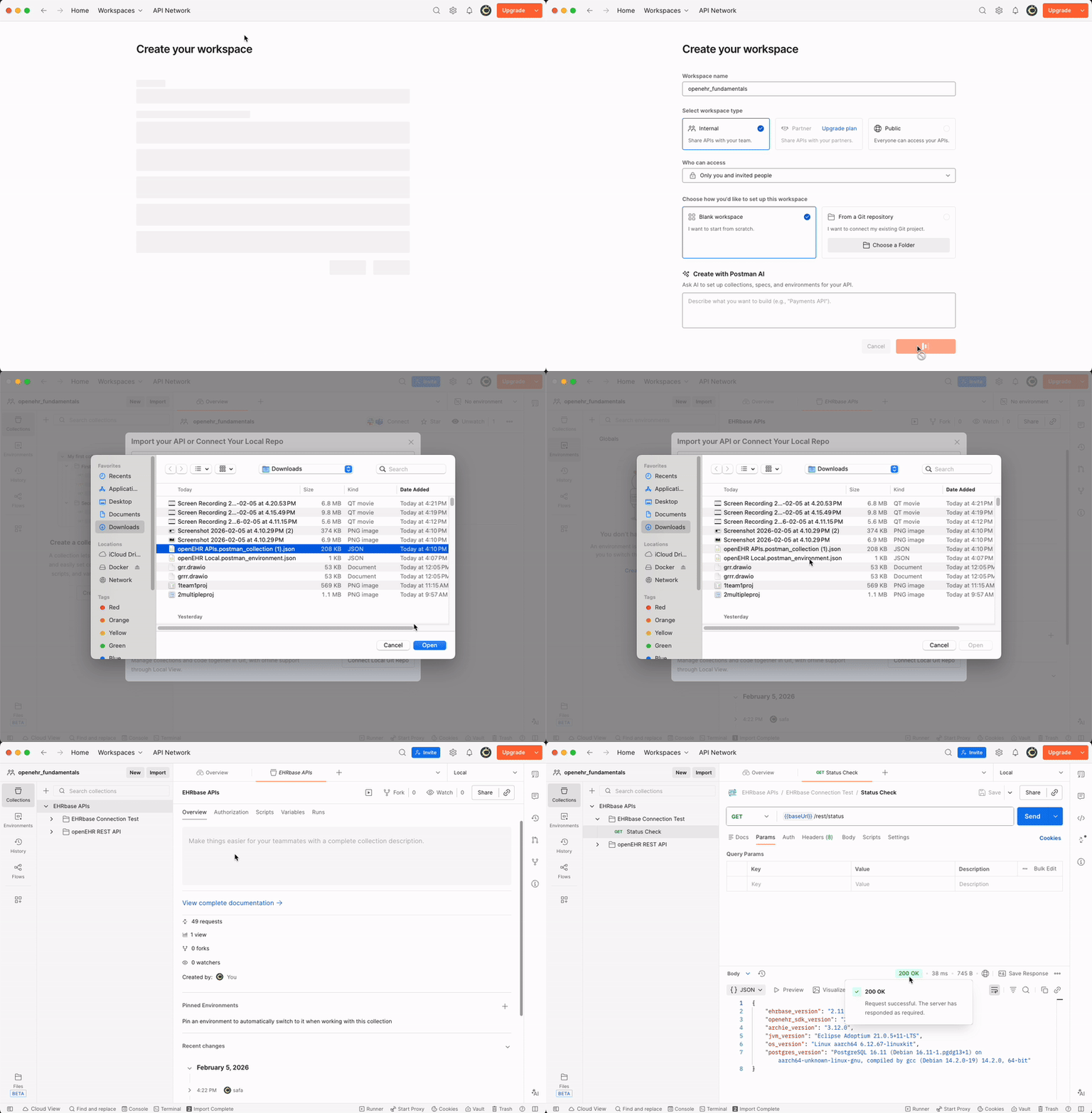
After downloading Postman, create a new workspace in Postman to get started.
In your workspace, you need to import the following files:
- Collection JSON: a ready-made set of API requests you can run
- Environment JSON: stores variables like the server URL
Open these GitHub links, download the files and import them in your Postman workspace.
Once you’ve imported both files, set your workspace environment as local and find the Status Check API file inside EHRbase Connection Test folder.
Once you’ve located the file, you’ll see that the request is fairly simple:
GET {{baseUrl}}/rest/statusThis checks whether the server is up and responding.
Click Send and you should see a 200 OK Status Response. With this result, you know that your connection and endpoint are set up correctly.
The GIF below demonstrates this whole process:
2. Upload the Template
Now that we have Postman set up and the OPT file downloaded, we can start working with the openEHR REST API.
The openEHR REST API is part of the openEHR specification where you can take a look at their documentation.
But we do not recommend diving straight into the openEHR spec because it can get overwhelming. Instead, we will use our Postman collection and get started with learning about the openEHR REST API by performing small, simple exercises.
The first thing we need to do is upload the OPT into our openEHR server. In the template folder, you will find an Upload Template (OPT) file.
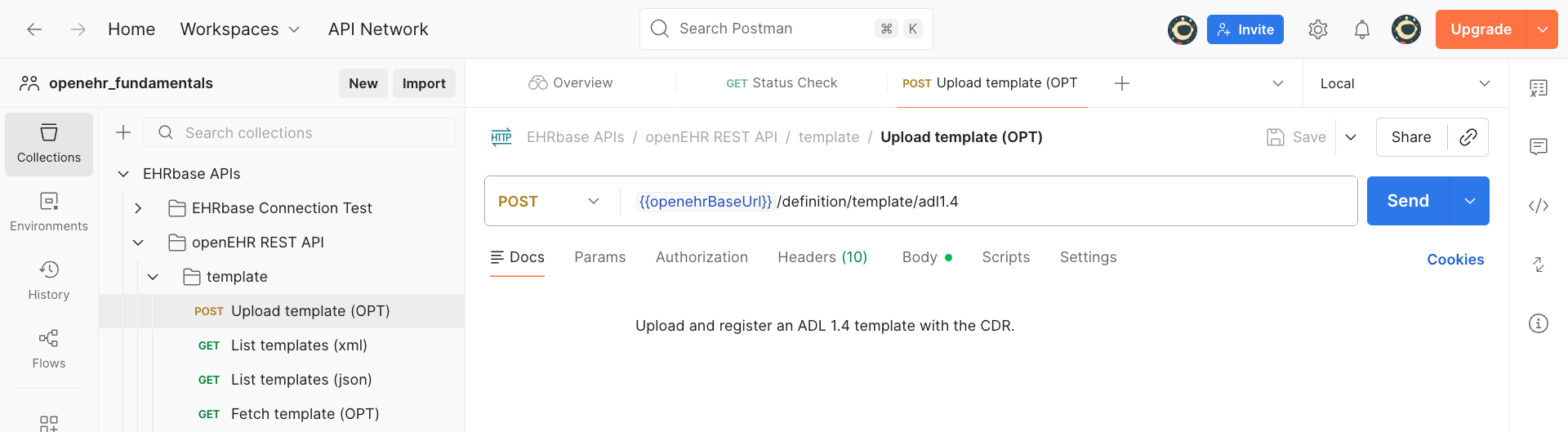
Upload template (OPT) from the collectionNow open the OPT file that you exported from the Archetype Designer and copy the content, it should be in XML format.
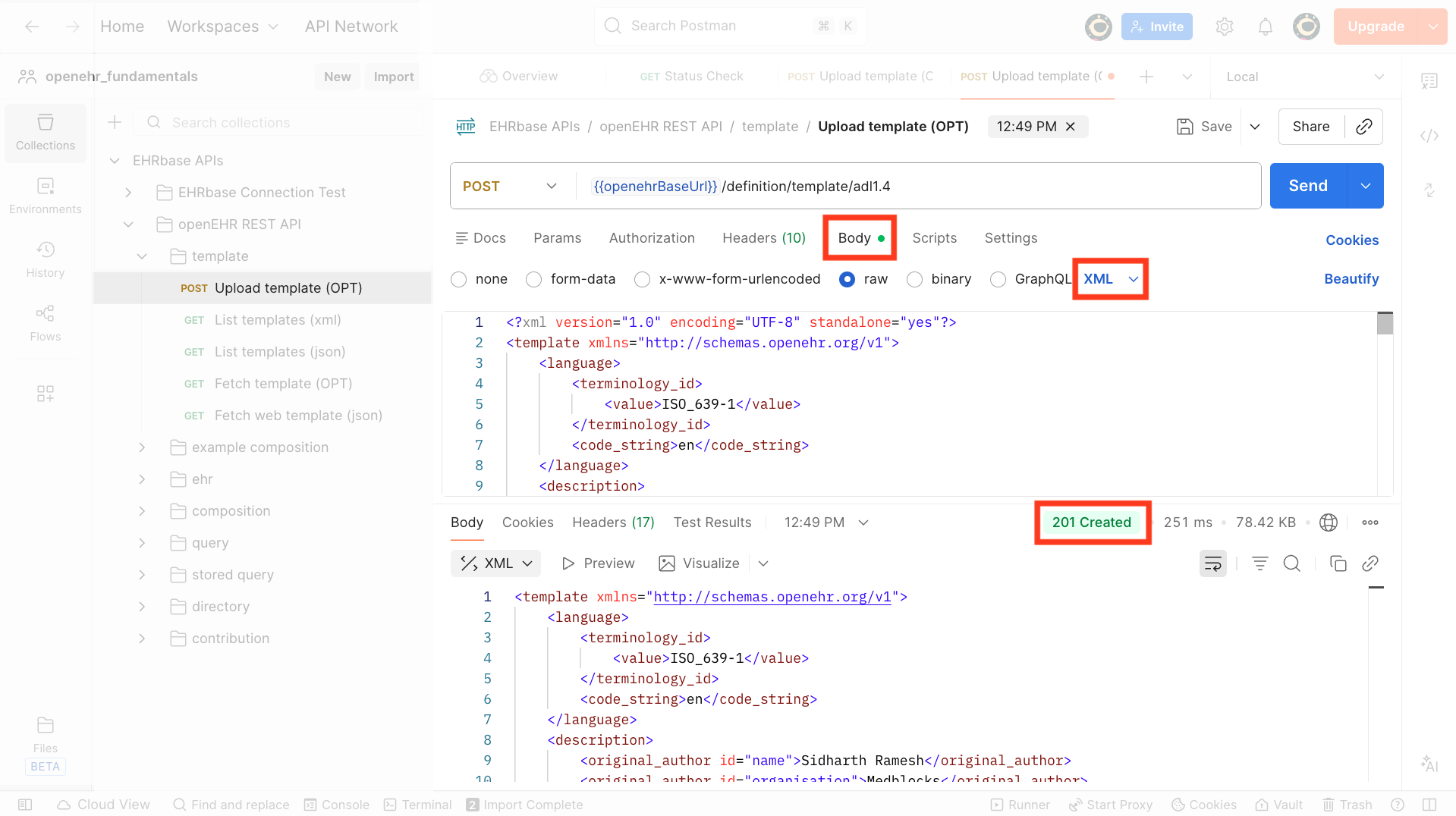
Finally, you can paste the copied content in the Body section of the Upload Template (OPT) file in Postman. There is a sample OPT file in the Body which you can replace.
Make sure you have XML selected as the format. After pasting the OPT content in the body, click Send and if you see a 201 Created response, it means that your template has been saved on the openEHR server.
To verify your template has been uploaded, open any of the List Templates files and click Send. It will return a list of uploaded templates in the server.
With this, we have uploaded our template into the openEHR server, and now we can start working with Compositions and explore the rest of the openEHR API specifications.
Lesson summary
In this lesson, we took a first look at the Template API through a hands-on exercise. With Postman, we checked our EHRbase connection, and uploaded an OPT template using the Template API. We used the local EHRbase server we set up in the previous lesson to do this.
We first set up a new Postman workspace, and imported the collection and environment variables. Then, we checked the status of the connection to the EHRbase server with a simple GET request. Finally, we uploaded the template we exported from the Archetype Designer (in OPT format) to the EHRbase server.