Getting Started with AQL
In the previous module, we learned how to upload templates, create and retrieve EHRs, and create, retrieve, update, and delete compositions.
Before we put this into practice, you need to learn one last concept: Archetype Query Language (AQL).
If you’re new to SQL-style queries, review SQL basics first because AQL uses a similar structure. You can also refer to the official AQL docs while following along.
- EHRbase AQL docs: https://docs.ehrbase.org/docs/category/archetype-query-language
- openEHR AQL specification: https://specifications.openehr.org/releases/QUERY/latest/AQL.html
- SQL tutorial: https://www.w3schools.com/sql/
Archetype query language (AQL)
So far, our workflow has relied on already knowing the composition ID. That’s fine for basic testing, but in a real system you often won’t know the ID ahead of time.
It’s not very practical to only retrieve data when you already have the ID.
That’s where AQL comes in.
AQL (Archetype Query Language) is the query language used in openEHR to search and retrieve clinical data from an EHR system. The simplest way to think about AQL is you can run SQL-like queries against your openEHR system.

Build your first real FHIR app in 15 days
500+ builders have done it. Live kick-off, structured modules, Demo Day. $27.
Join the challengeQuery all compositions
Let’s start with a very basic Ad-hoc query:
In the Postman collection, select the query folder. Inside it, you’ll find the Ad-hoc query request and in the body of the request, type the below query:
SELECT c FROM COMPOSITION cYour request should now resemble the below image:
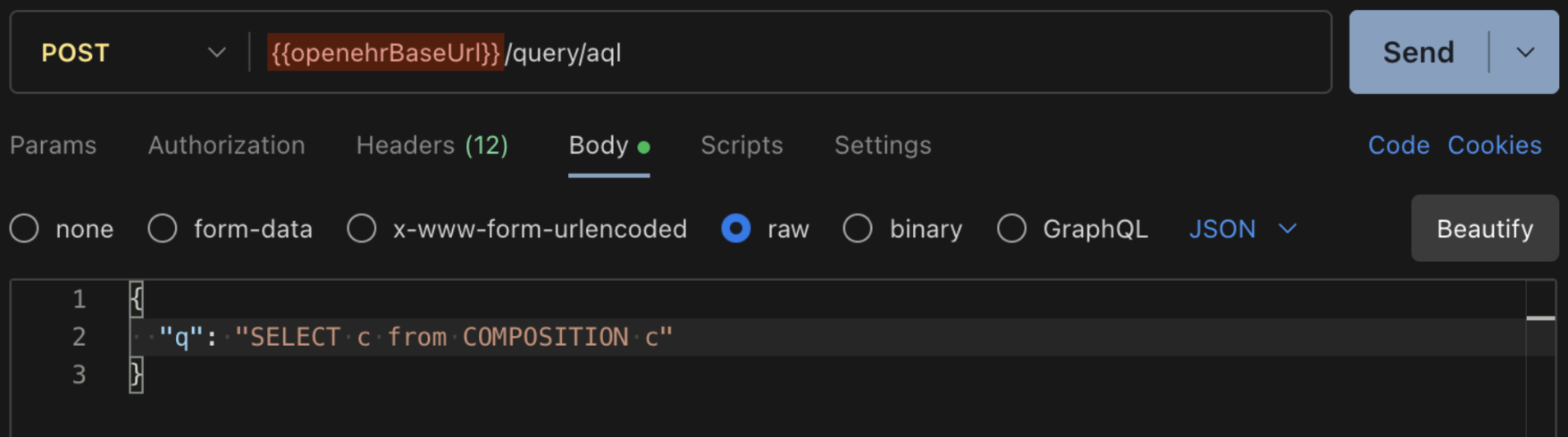
This simply means, “get me all the compositions in the system.”
Click Send and you should get back a 200 OK response. This query returns all the compositions currently stored in the system.
Note: Compositions can have multiple versions, but the versions themselves are not returned as separate compositions here. When you query composition, you retrieve only the latest version of each composition.
Querying specific parts of a composition
Returning the full composition is useful, but in practice you often want only a specific field.
Say if you only need the composition IDs, using the same request you can query just that part by using a path off the alias (c), for example:
SELECT c/uid FROM COMPOSITION cOr if you want to go a level deeper then:
SELECT c/uid/value FROM COMPOSITION cNow the result contains only the composition IDs.
This is useful because once you have the composition IDs, you can use everything we’ve already learned in the previous lessons.
Querying with AQL paths
If you want to query a specific clinical data point, use the AQL path. It points to the exact place where that data sits, so AQL can retrieve it.
AQL paths are the openEHR path expressions you use inside an AQL query to point to a specific node (CLUSTER/ELEMENT/value, etc.) in the openEHR data structure.
For example, the image below from the Archetype Designer shows the path for this field.
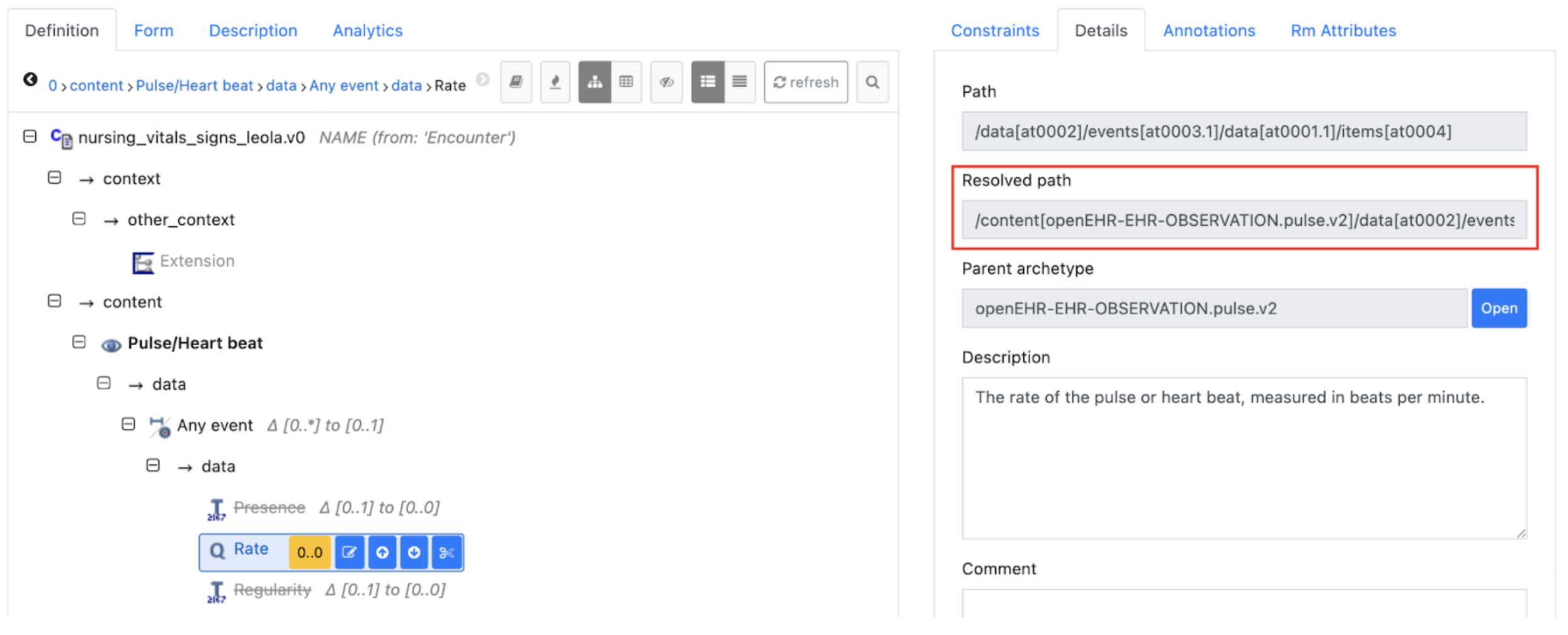
Here’s an example of the complete path: /content[openEHR-EHR-OBSERVATION.pulse.v2]/data[at0002]/events[at0003]/data[at0001]/items[at0004]
Therefore, your query would look like:
SELECT c/<aql-path> FROM COMPOSITION cReplace the <aql-path> with the obtained AQL path of the vital that you want to select.
Incase you want to select only the magnitude then you can use the below query:
SELECT c/<aql-path>/value/magnitude FROM COMPOSITION cThis gives you just the clinical data points you need from your compositions.
Querying at the archetype level
Compositions group clinical entries built from archetypes (like Blood Pressure, Pulse, etc.). In AQL, you can query those entries directly at the archetype level.
So you can start by querying by RM type:
SELECT o FROM OBSERVATION oHere, OBSERVATION is the RM type and o is the alias.
Then filter to a specific archetype using the archetype ID:
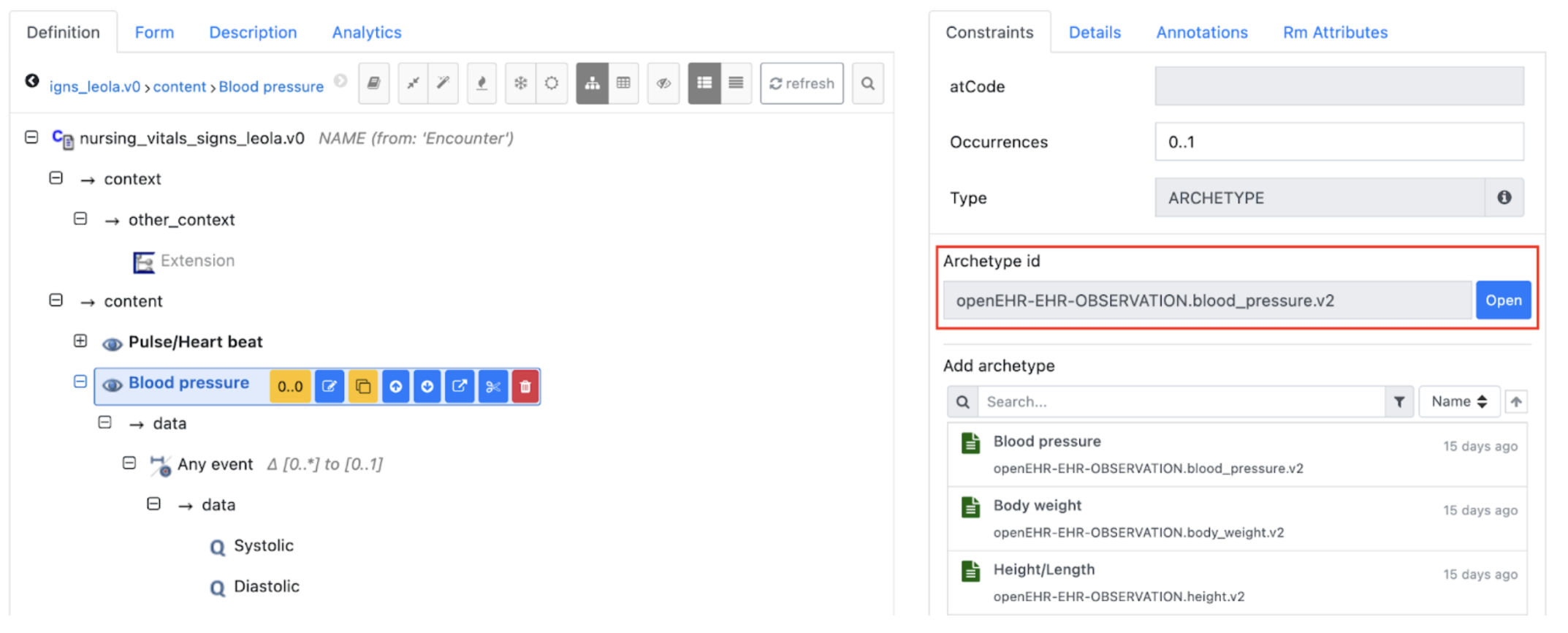
SELECT o FROM OBSERVATION o[openEHR-EHR-OBSERVATION.pulse.v2]Lesson summary
In this lesson, we covered Archetype Query Language and how it helps query openEHR data without requiring a composition ID upfront.
We also looked at how to query all compositions. Later, we learned how to retrieve specific fields using AQL paths. Next, we explored querying at the archetype level and saw how to filter results to a specific archetype using the archetype ID.