Create Template and Query with AQL
In this lesson, we will create a template, upload its OPT to EHRbase, and query the data using AQL.
Navigate to CKM and click on ‘Find Resources’ tab. Search for Health Summary archetype as shown in the image below and download the ADL version.
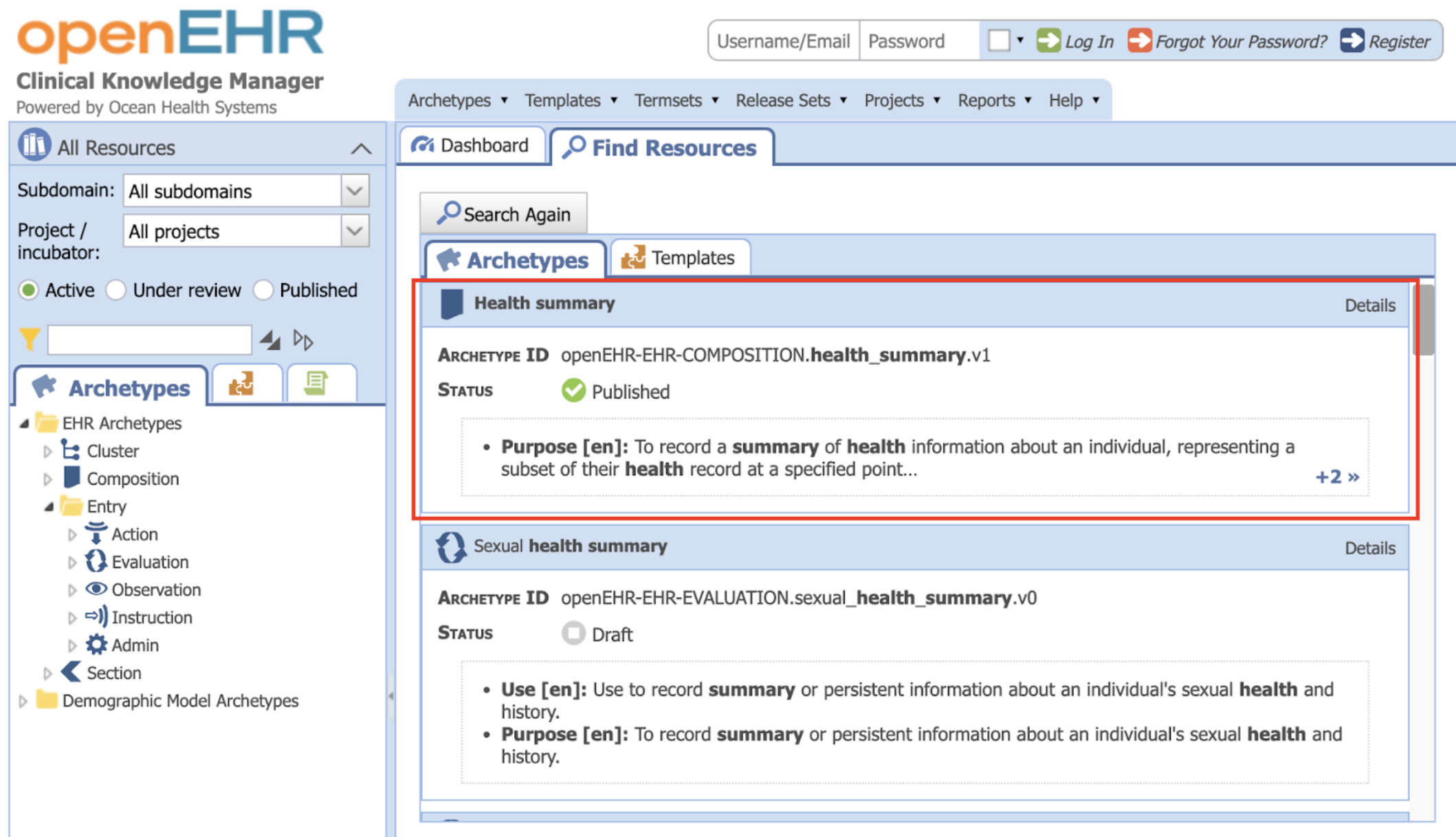
From the CKM also download the below archetypes:
- Adverse reaction risk (openEHR-EHR-EVALUATION.adverse_reaction_risk.v2)
- Pulse/heart beat (openEHR-EHR-OBSERVATION.pulse.v2)
- Body mass index (openEHR-EHR-OBSERVATION.body_mass_index.v2)
1. Creating a template
In the Archetype Designer, create a new template.
Choose Health Summary and name the template patient_summary.v0.
To this template add:
- Adverse reaction risk (Remove everything except Substances)
- Pulse/Heartbeat (Add only rate, regularity and presence)
- Body mass index (Remove everything except BMI)
Once the template is ready, save it and download the OPT

Build your first real FHIR app in 15 days
500+ builders have done it. Live kick-off, structured modules, Demo Day. $27.
Join the challenge2. Upload OPT to EHRbase
In the Postman collection, go to the template folder. Find and open the Upload OPT Template POST request. Copy the entire OPT content and paste it into the request body.
Click Send and you should get a 201 Created response.
You can use the List template (json) GET request and look for your template ID to confirm if your template exists.
3. Generate an example FLAT JSON composition for the template
In the example composition folder, go to the Example FLAT JSON endpoint and replace the template ID with patient_summary.v0.
GET {{openehrBaseUrl}}/definition/template/adl1.4/{{templateId}}/exampleClick Send and you should get a 200 OK with the FLAT JSON example payload.
4. Clean example JSON in code editor
Copy and open the FLAT JSON payload in your code editor. You’ll notice a bunch of fields that are not mandatory for this lesson and can be removed, like:
- _workflow_id
- guideline IDs
- math function fields
- widths
Once that’s cleared make a few edits such as, make Heartbeat “any event” as present and set pulse rate value to 70.
You can also change the composer’s name.
5. Create composition
In the composition and open the create folder, then select the POST request Create composition – FLAT JSON. Paste the cleaned FLAT JSON into the request body and ensure the template ID is set to ‘patient_summary.v0’.
POST {{openehrBaseUrl}}/ehr/{{ehrId}}/composition?templateId={{templateId}}Click Send and if you see a 201 Created response, it means that your composition has been created successfully.
6. Verifying if composition exists with AQL
In the postman collection, select the Ad-hoc query:
POST {{openehrBaseUrl}}/query/aqland run the below query in the body:
SELECT c FROM COMPOSITION cYou should see all the list of compositions present including the one that you have just created.
Query compositions by composition archetype ID
We can also filter compositions by the archetype it is based on so that you get only ones that match, using the below query:
SELECT c FROM COMPOSITION c[openEHR-EHR-COMPOSITION.health_summary.v1]This AQL query will return only the matching compositions.
Get certain vital information using resolved path
From the above query result you can use the resolved path to get only the ‘pulse rate’ using the resolved path as shown below in the following query:
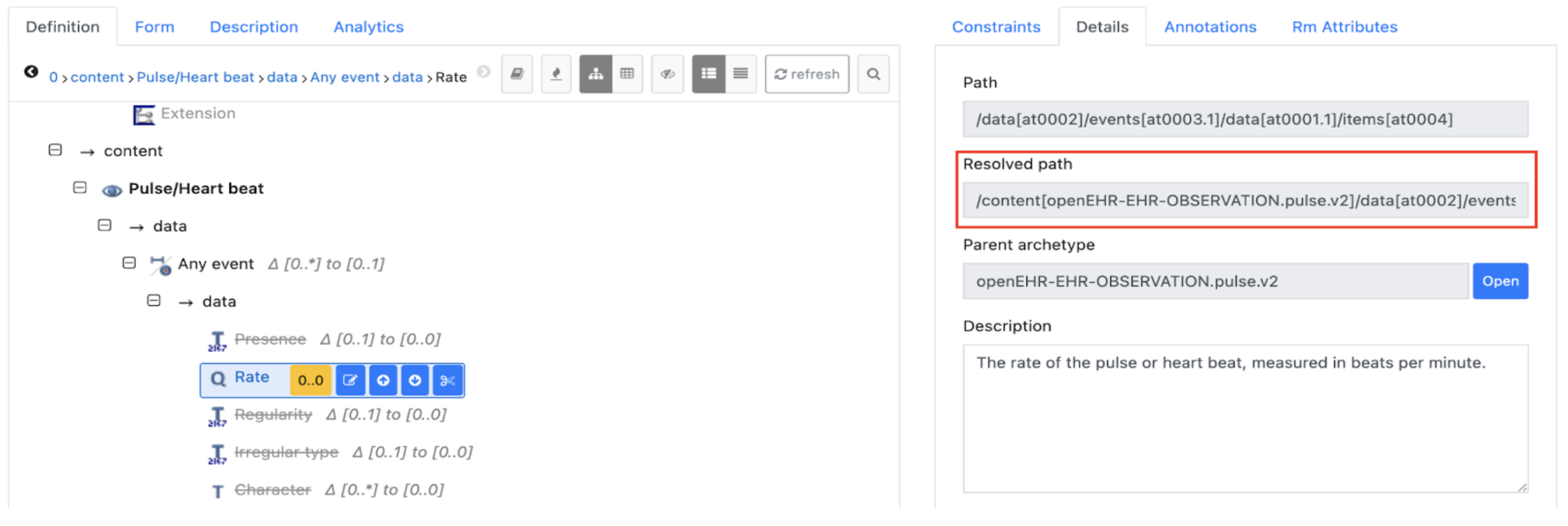
SELECT c/content[openEHR-EHR-OBSERVATION.pulse.v2]/data[at0002]/events[at0003]/data[at0001]/items[at0004] FROM COMPOSITION c[openEHR-EHR-COMPOSITION.health_summary.v1]Note: Even if removing the composition filter might work, the better approach is to query it directly from OBSERVATION.
You select from observation, filter by the parent archetype id of pulse, and then use a path relative to the observation as shown below:
SELECT pulse/data[at0002]/events[at0003]/data[at0001]/items[at0004]/value/magnitude FROM OBSERVATION pulse[openEHR-EHR-OBSERVATION.pulse.v2]Use AS to make results more readable
In AQL, you use the AS keyword to rename (alias) selected columns in your result set. This makes the output clearer and easier to understand.
SELECT pulse/<rate_path>/value/magnitude AS pulse_rate, pulse/<presence_path>/value/value AS presence FROM OBSERVATION pulse[openEHR-EHR-OBSERVATION.pulse.v2]Include composition and observation together using CONTAINS
If you want to know which composition each pulse came from, include composition in the FROM clause.
Instead of:
FROM OBSERVATION pulseYou do:
FROM COMPOSITION c CONTAINS OBSERVATION pulseIn this way you can reference both. For example:
SELECT c/uid/value AS id, pulse/<rate_path>/value/magnitude AS pulse_rate, pulse/<presence_path>/value/value AS presence FROM COMPOSITION c
CONTAINS OBSERVATION pulse[openEHR-EHR-OBSERVATION.pulse.v2]
So you can see exactly which composition a particular value came from.
Lesson summary
In this lesson, we created a second template in our local EHRbase server by uploading its OPT file and then generated a new composition from it. After that, we practiced AQL to query data across templates and archetypes by filtering compositions by archetype and querying observations across multiple compositions.
We also used AS to make the output column names clearer and CONTAINS to return composition context together with the clinical data.