
Patient Access
Configure Epic for patient-facing portal authorization.
Patient Access connections are used when a patient signs in to their patient portal and approves your app. For Epic, this is the SMART on FHIR patient authorization flow.
Open Connections in the dashboard, then choose Epic under Patient Access.
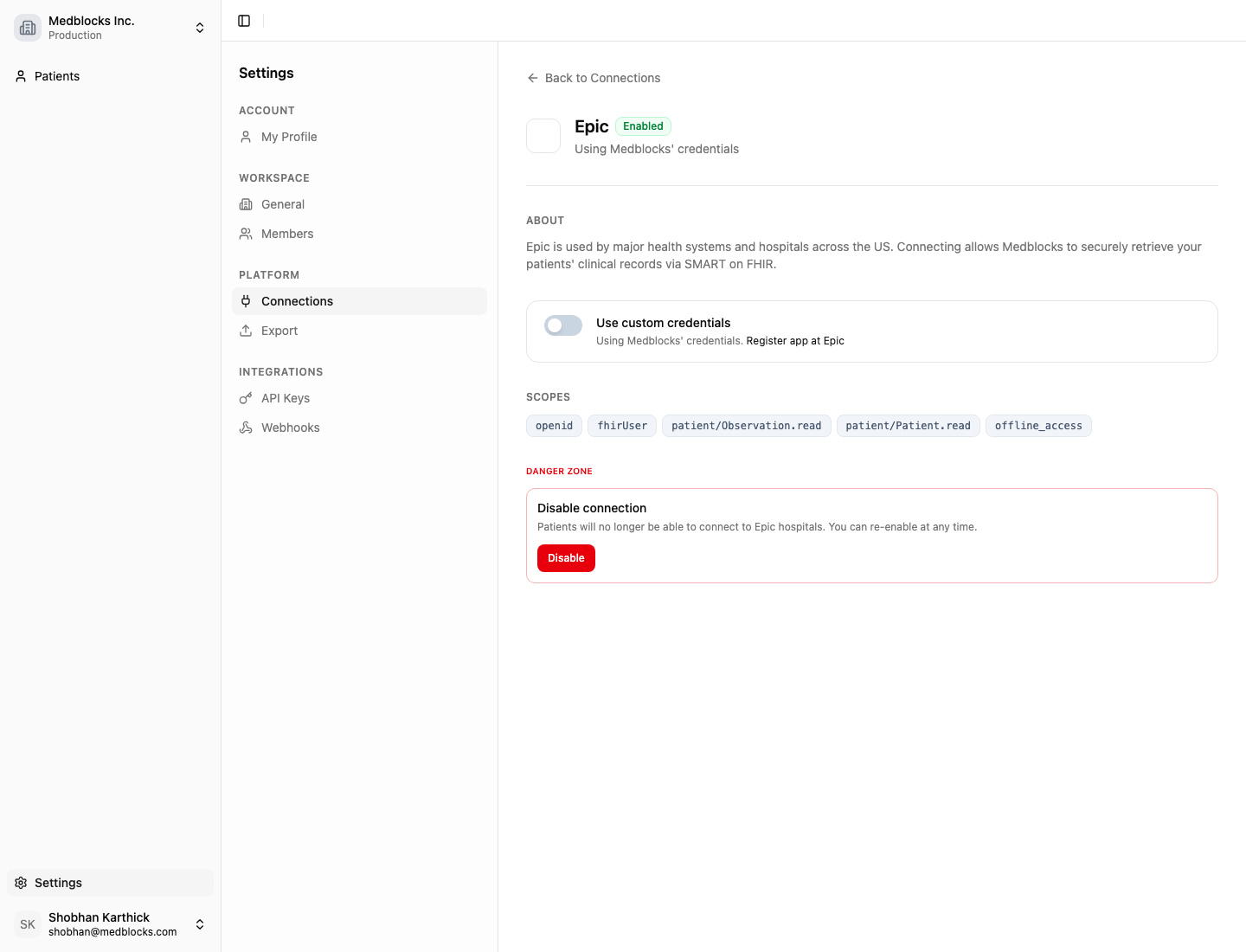
What the page shows
The status shows whether patients can connect to Epic from this workspace. When the connection is enabled, patient sessions can route patients to Epic portals.
The credential mode tells you whether the workspace is using Medblocks credentials or your own Epic app credentials. If you use your own credentials, the page shows the Redirect URI and JWKS URI to copy into the Epic developer configuration.
The scopes section lists the SMART scopes Medblocks requests during patient authorization. These are the permissions Epic shows as part of the patient approval flow.
Credentials
By default this connection uses Medblocks-supplied credentials, so patients can connect to Epic right away without you registering an Epic app. This is the quickest way to start.
Turn on Use custom credentials when patients should approve your own registered Epic app instead. Use the Epic patient access guide for the current Epic developer setup. After the Epic app is ready, copy the Redirect URI and JWKS URI from Medblocks into the EHR developer configuration, then copy the Epic Client ID back into Medblocks and save the connection.
Patients keep using the same patient session flow after this change. The only difference is which upstream Epic app identity handles the approval.
See also
Need help?
Running into an issue? Get support from our team and we will get back to you.
How is this guide?